KindredLens is a private, local-first place to notice how you are doing during the first year after giving birth. Use short check-ins, descriptive patterns, a support plan, and a visit summary to prepare for conversations with people you trust and your care team. KindredLens does not diagnose, treat, or monitor postpartum depression, and it cannot contact anyone for you.
KindredLens is coming soon. The browser preview is for sample information only and is not encrypted. The PHQ-9-only schema 2 self-check remains unavailable in release builds pending new clinical review of its presentation and safety guidance. Older development bytes fail closed pending an explicit reset. There is no account, hosted recovery, or beta service.
Start with your own record.
On first launch, read the welcome screen and select Continue under A softer way to notice.
In About you, enter What should we call you? and Your baby's birth date if you want; both are optional. Select Continue.
Under Your support circle, you may add a person with Who is this?, Name, and Phone number. KindredLens never contacts them for you.
Choose Gentle daily reminder and Lock with Face ID or passcode if useful, then select Start using KindredLens.
The main navigation is Today, Patterns, Visits, Plan, and More. Get help now remains available without an account, subscription, or network connection.
Where to find each feature.
Today > Check in
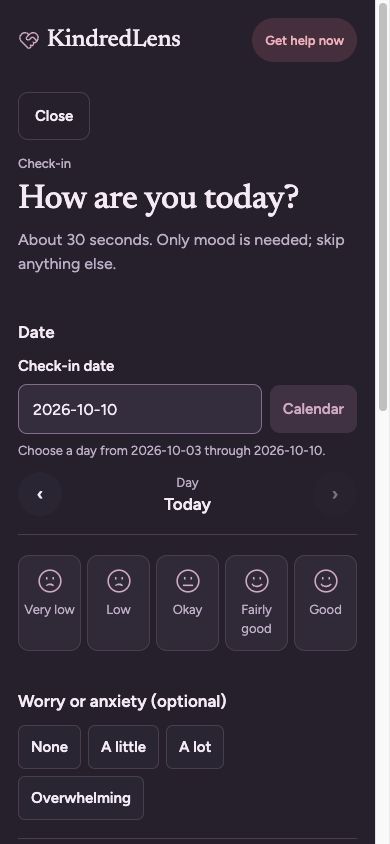
Use Check in from How are you today? for a roughly 30-second daily entry. Mood is required; Worry or anxiety, Sleep and rest, Feelings today, Small basics, a note, and the harm question are optional. You can review or edit today’s entry with Review today's check-in. Store access remains disabled in the default unreleased build.
Today > Having a hard moment?
Choose Note it to record how a hard moment felt, what might help next time, and an optional note. Choose Try something now for short, clinically reviewed coping exercises.
Today > descriptive pattern notice
After enough entries, Today may show Something worth talking about with a descriptive count of low or very low mood across recorded days. It is not a diagnosis. Choose Who to contact or Not now; skipped days stay blank and are never counted as low.
Patterns
How things have been shows counts for the selected Time range, feelings and Small basics you recorded, by week after birth, recent check-ins, and hard moments. It describes your entries; it does not diagnose or monitor you.
Plan > My support plan
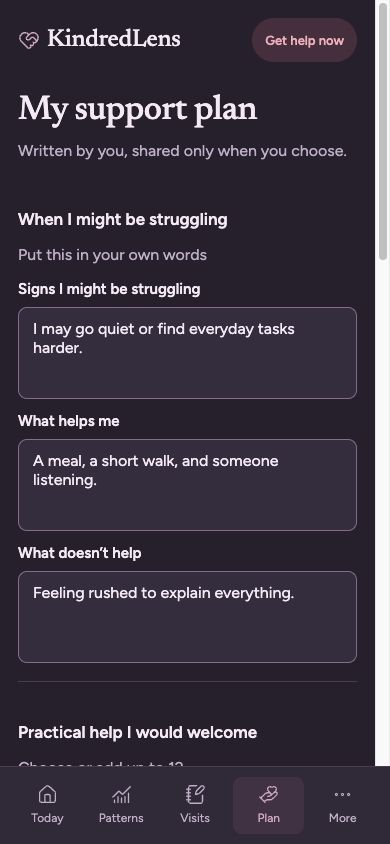
Write Signs I might be struggling, What helps me, What doesn’t help, and Practical help I would welcome. Save with Save plan. Add trusted people under People who appear on Get help now; KindredLens only displays them and never calls or messages them automatically. Preview and share with Share plan or Copy when you choose.
Visits > Visit summary
Prepare a patient-reviewed summary for an appointment: choose Type of visit, an optional Visit date, the date range, What you want them to understand, Questions to ask, and What to include. Preview summary builds a draft. Sensitive sections are flagged and require I’ve reviewed what will be shared before Share PDF, Share as text, or Copy text.
Visits > Saved summaries
Choose Save for comparison to keep a summary on this device in Saved summaries. Sharing or copying does not automatically save a comparison copy, and opening the device share sheet does not confirm delivery. Use Show text or Hide text to review, and Delete to remove a saved summary. Files already shared elsewhere are outside the app’s deletion boundary.
More → Care timeline
Record changes in therapy, medication, support groups, or practical help in your own words, with optional details and follow-up dates. This is a record, not treatment advice.
More > PHQ-9 self-check
The PHQ-9-only schema 2 self-check asks nine scored questions about the past two weeks, with a separate, unscored daily-impact question when a problem is recorded. Its presentation and safety guidance await qualified clinical review, so it is unavailable in release builds. Older development bytes fail closed pending an explicit reset.
More > Learn / Coping exercises
Read clinically reviewed Learn cards and try short coping exercises. The review covers the identified content and does not provide individual diagnosis or care.
More > Find care
Find non-crisis routes to care, including your OB, midwife, baby’s doctor, support groups, and external provider directories.
More > Settings & privacy
Review the Privacy policy, neutral reminders, Require device unlock, Appearance, encrypted backup and restore, Delete device data, and the local storage disclosure. The native record uses encrypted device storage; the browser preview uses unencrypted local storage for sample information only.
Get help now
Get help now is bundled with the app, works offline, does not require a loaded record, account, subscription, or connectivity, and is reachable from every screen, the lock screen, and storage recovery. It offers 911, 988 Suicide & Crisis Lifeline, the National Maternal Mental Health Hotline, and saved people when present. It cannot contact anyone automatically and nobody watches entries.
Practical walkthroughs.
Screenshots show development app screens with sample data. Mobile-layout browser captures illustrate the screens; native permissions, recording, and store checkout may look different.
Set up a private starting point
Complete only the context and support details you want to keep on this device.
Read A softer way to notice and select Continue.
Optionally complete What should we call you? and Your baby's birth date, then select Continue.
Optionally add a person in Your support circle using Who is this?, Name, and Phone number.
Choose Gentle daily reminder or Lock with Face ID or passcode if wanted.
Select Start using KindredLens to open Today.
Make a daily check-in
Record the smallest useful entry and leave anything else blank.
The current check-in form. Only mood is needed; other fields can stay blank. Saving a new check-in requires current logging access.View full-size screenshot
On Today, select Check in under How are you today?.
Confirm the Check-in date and choose a mood in the mood scale.
Optionally open Worry or anxiety, Sleep and rest, Feelings today, or Small basics.
Answer Have you had thoughts of harming yourself or your baby? if you want to; selecting Yes opens Help immediately before anything is saved.
Add an optional note and select Save check-in.
Capture a hard moment
Keep a brief record for later reflection or a care conversation.
On Today, find Having a hard moment? and select Note it.
In How it felt, optionally choose How intense was it? and the descriptions that fit.
In What might help next time?, write what helped, if anything, and an optional Note.
Select Save, or select Get help now if you need immediate support.
Review descriptive patterns
Use your recorded entries to prepare questions without treating the result as a diagnosis.
Select Patterns in the main navigation.
Choose a Time range.
Review Counts, Feelings you chose most, Small basics, By week after birth, Recent check-ins, and Hard moments.
Use the entries and counts as observations to discuss with a clinician or trusted person.
Build a support plan and trusted contacts
Write specific support requests and make chosen people available from Help.
A fictional support plan in the current app. Write your own words, select Save plan, and review Preview before choosing to share.View full-size screenshot
Select Plan, then complete Signs I might be struggling, What helps me, and What doesn’t help.
Under Practical help I would welcome, select options or enter Something else and select Add.
Select Save plan.
Under People who appear on Get help now, select Add a person and enter Who they are, Name, and Phone number, then select Save person.
Review Preview, then select Share plan or Copy only when you choose.
Prepare and review a visit summary
Choose exactly what to bring into an appointment conversation and review sensitive sections before sharing.
Select Visits and choose the visit Type of visit.
Optionally enter Visit date (optional, YYYY-MM-DD) and set Include entries from (YYYY-MM-DD).
Complete What you want them to understand and add Questions to ask with Add a question.
Open What to include and choose the sections you want in the summary, including whether to include My notes.
Select Preview summary, read the result, and turn on I’ve reviewed what will be shared when sensitive sections are appropriate.
Choose Share PDF, Share as text, or Copy text. The device handles sending or saving files; a dismissed share sheet does not confirm delivery. Choose Save for comparison separately to keep a copy in Saved summaries.
Record a change in care or support
Keep a dated record to discuss with your care team. New entries require current logging access.
Open More → Care timeline → Add an entry.
Set Day (YYYY-MM-DD), What happened, Type of care, and Name.
Optionally add Details and a Follow-up date, then select Save entry.
Use Edit to correct a record or Delete to remove it after confirmation.
Create or restore an encrypted backup
Keep a portable encrypted file and understand the replacement boundary before restoring.
Open More, then Settings & privacy.
Under Back up, enter a Backup passphrase and Confirm passphrase of 12 to 256 characters.
Select Create backup and store the encrypted file somewhere private; KindredLens cannot recover the passphrase.
To restore, select Choose backup file, enter the Backup passphrase, and select Open backup.
Read the confirmation carefully: opening a backup replaces everything on this device.
Create or restore a manual backup
Keep the journal on this device and use a passphrase-encrypted backup file when you want a portable copy.
Open More → Settings & privacy and find Back up.
Enter a Backup passphrase and Confirm passphrase of 12 to 256 characters. Keep it private; support cannot recover it.
Select Create backup and save the encrypted file somewhere private.
To restore, select Choose backup file, enter the Backup passphrase, and select Open backup.
Read the confirmation carefully: opening a backup replaces everything on this device.
Get help, review privacy, or erase device data
Keep urgent support separate from account and billing, and use explicit controls for deletion.
Select Get help now from any available Help button, including while the app is locked or recovering storage.
Call or text a listed resource, or choose a person under Your people; if calling or messaging cannot start, dial the displayed number yourself.
For privacy details, open More > Settings & privacy and select Privacy policy.
For local deletion, enter ERASE under Delete device data and select Erase everything; this removes the device record, reminders, and temporary exports but not files already shared or backups saved elsewhere.
For local deletion, enter ERASE under Delete device data and select Erase everything; this removes the device record, reminders, and temporary exports but not files already shared or backups saved elsewhere.
Plans and access.
KindredLens has no account, sign-in, hosted recovery, AWS access service, installation verification, or custom server beta lease. No beta release is available yet.
An eligible seven-day store-managed trial begins when you confirm the store offer. Downloading, setup, and signing in do not start it. It renews into the selected plan unless canceled through Apple or Google; eligibility and checkout terms are set by the store.
Plus is planned at $3.99/month or $39.99/year in the US. Store purchases remain disabled in the default unreleased build; an eligible one-week store trial may be offered in a future enabled build.
Core local use, export, manual backup restore, deletion, saved records, and Get help now do not require a KindredLens account. Unreleased clinical drafts are not included as available public features.
Restore purchases restores store payment access; it does not restore a device record or a forgotten backup passphrase.
Get help now is always independent of billing, account status, admission, and connectivity.
KindredLens has no hosted access service or installation-verification flow in the current product boundary.
On native iPhone and Android builds, the record is stored in SQLCipher-encrypted SQLite with a device-held key. Check-ins and Get help now work offline.
The record can include profile and preferences, contacts, daily check-ins and self-harm answers, hard moments, self-checks, care timeline, visit preparation, saved summaries, and support plan.
The browser preview stores data unencrypted in localStorage and is for sample information only; it is not the native privacy implementation.
Journal sharing, copying, and encrypted manual backup happen only when you choose them. Store billing, when enabled, processes subscription metadata as described in the privacy policy.
KindredLens has no AI analysis of entries, no analytics or session replay, no automatic contact, no monitoring service, and no remote crisis content. Crisis numbers and guidance are bundled with the app.
Erase everything removes device data, its local key, reminders, and temporary exports. It does not remove files already shared or backups saved elsewhere.
Please keep private records, passwords, and recovery phrases out of support messages. Use the privacy, deletion, and support links below for this product.