User guide · Development pilot · Updated October 17, 2026
A place to learn.
A reference to return to.
From the first source file to the final record. Practical instructions for the people preparing a review and the people making the decisions.
This guide describes the current web development pilot. Screenshots use fictional documents and local demonstration accounts. Use test documents only; email sending is disabled and billing is in Stripe sandbox. Chapters labelled Local preview describe features awaiting deployment to the public pilot.
Use your browser’s Print command to save the complete guide as a PDF. Every chapter has a permanent link.
Before you begin
Use this guide to prepare a review, respond to an assignment, or look up a control. A packet brings the source document, its sections, the people involved, and the version record together. A creator prepares the packet; each named reviewer makes their own decisions. Policy recipients can separately confirm receipt or reading of a published version. The examples are invented: Cedar Studio, Lighthouse Collective, Northline Advisory, and Harbor Clinic do not represent customers or professional advice.
Follow the chapters in order for a tutorial, or use the contents to jump straight to a task. The public guide needs no sign-in. The protected beta guide covers testing; your invited ReviewLens account provides app access.
01 / Getting started
Start with one exact document
Learn the central ReviewLens idea before choosing a screen.
ReviewLens keeps a review attached to a particular candidate. The owner prepares a source, checks its extracted wording, maps sections, names reviewers, and freezes a candidate. Reviewers then read that candidate and add decisions. A later edit creates a new candidate and a new decision round; it does not silently change an earlier record.
The development pilot contains fictional data and is not a production service. The banner says, “Non-production workspace · Use test documents while we develop ReviewLens.” Treat seeded packets as demonstrations. They show states and controls, not customer approvals, delivery, compliance, or demand.
A useful first pass is deliberately small: one source, two or three sections, one named reviewer, and one clear question per section. Once you can explain what changed, who decided, and which version the decision concerns, add another round or policy campaign. The workflow is easier to trust when it remains legible from source to record.
Step by step
- Choose Desk from the workspace navigation.
- Select an existing packet or choose + New packet.
- Follow Prepare, Review, and Record in order.
- Use Policies only when an approved candidate should become a published policy.
- Candidate
- A frozen, numbered version that can receive decisions.
- Packet
- The working container for its source, sections, people, candidates, discussions, and records.
02 / Getting started
Sign in and understand your role
The same workspace shows different actions according to named access.
A creator or workspace owner can prepare packets, choose customer identity, assign people, reconcile decisions, publish policies, and export authorized records. A named reviewer sees Your assignments and can work only on the assignment granted to that person. A reviewer does not become a creator merely by opening a link.
Invitation acceptance, mailbox verification, delivery, and task readiness are separate facts. A person must sign in with the invited identity and prove access to the invited mailbox before opening the exact assignment. If an invitation is no longer active, earlier records remain records; the screen should say why access is unavailable.
The invited web sign-in page offers Continue with email, Continue with Google, and Continue with Apple. Use the method attached to your admitted account. Matching email addresses do not automatically join separate accounts. After signing out, email should request credentials and Google should offer an account choice. If your expected packets are missing, check the signed-in workspace and ask the owner to check access; signing in with another provider is not a way to claim somebody else’s assignment.
Step by step
- Sign in with the account associated with the invitation.
- Confirm the workspace and packet title before acting.
- If you are a reviewer, open Your assignments; if you are an owner, open Desk or People.
- Do not share a login to represent two people or treat mailbox control as verified legal identity.
Keep in mind
- A delivered invitation does not prove that the recipient read it.
- A reviewer cannot use hidden UI controls to gain preparation or administration access.
- A fixture identity and a real customer identity are different evidence classes.
03 / Getting started
Use the Review desk
Find the next action across your reviews and policy requests.
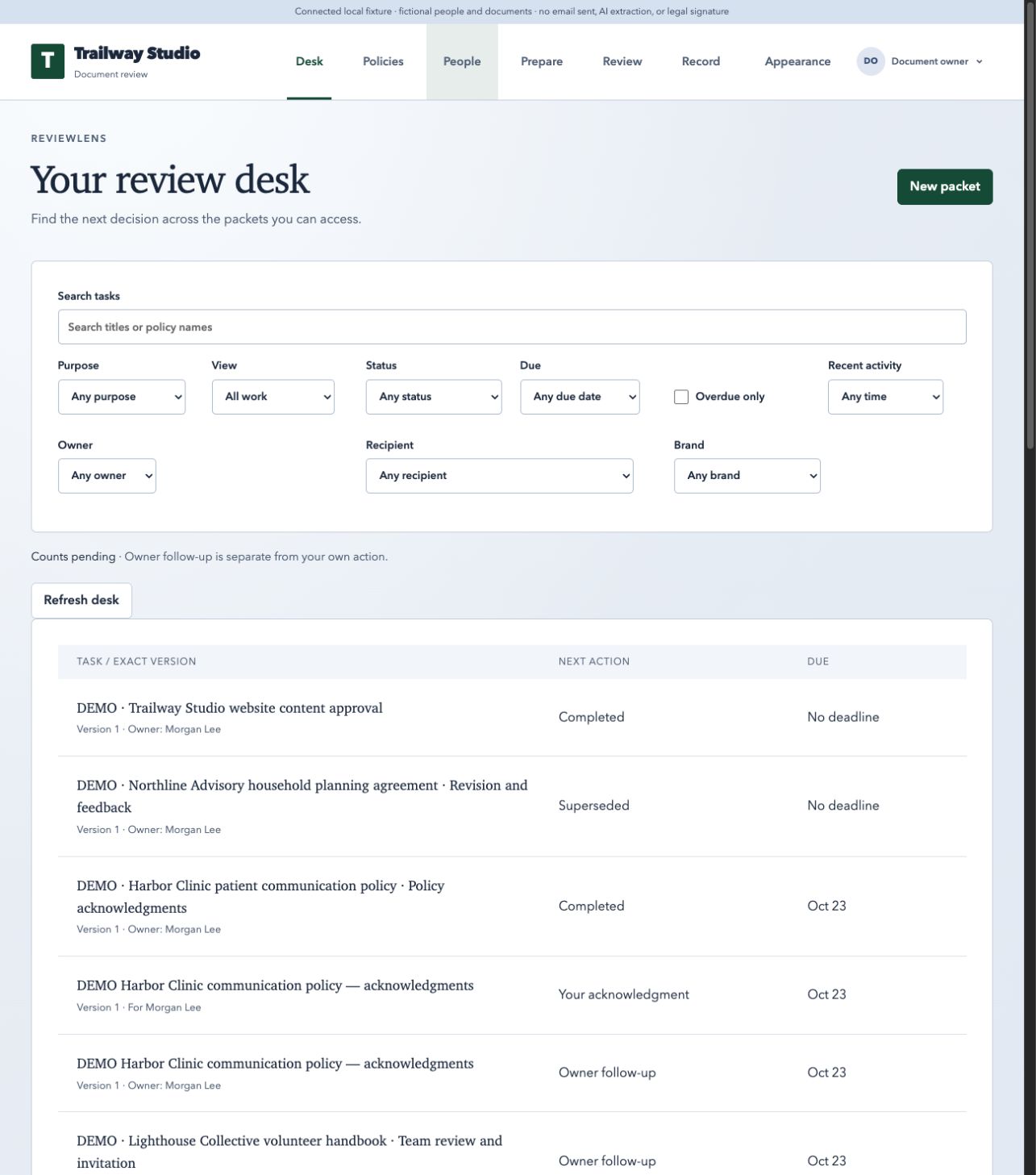
Desk opens Your review desk: a task list across packets and published-policy requests you can access. Each row names the exact version and the next action. Your review and Your acknowledgment are your own tasks. Owner follow-up means you are coordinating other people’s work; it is separate from your own decision. A completed or superseded row is history, not a fresh request.
Use Search tasks to find a title, then narrow by Purpose, View, Status, Due, Overdue only, Recent activity, Owner, Recipient, or Brand where your role permits. My action focuses on your work; Owner follow-up focuses on work you administer. Refresh desk reloads the list, and Load more retrieves another page. Counts pending means the totals have not been established yet; do not treat that as zero work.
The header also provides Policies and, for owners, People. Prepare, Review, and Record open the current packet workflow. Inside a packet, Review packet selects the document; the breadcrumb and version badge tell you where you are. The reading screen has an outline, the document sheet, and Your decisions. Use the account menu for Settings, Plan and usage when authorized, and Sign out.
Step by step
- Choose Desk from the header.
- Use View: My action to find your own reviews and acknowledgments.
- Filter or search, then open a task row and check its exact version.
- Use Owner follow-up when coordinating a packet; a row about someone else is not your own approval.
- Choose Refresh desk or Load more if the expected task is not yet visible.
- Working draft
- Owner preparation that is not yet a frozen candidate.
- Frozen
- The candidate has a stable version and digest for review.
04 / For creators
Add the source
Write, paste, or stage one supported document for authenticated processing.
Source intake accepts direct writing or paste and one file at a time. The file picker and drop zone accept TXT, Markdown, text-based PDF, and DOCX up to 20 MiB. Selection stages the file locally; Save source and inspect extraction begins authenticated processing. Replacing the source invalidates source acceptance and section-map acceptance. PDFs are limited to 100 pages. For PDFs, choose a document with selectable text.
The original bytes are retained with a SHA-256 digest. This gives the owner something concrete to compare with the canonical text. It does not mean every layout feature can be reconstructed. A clean text representation may be safer than accepting an ambiguous conversion.
For a first demonstration, use a short fictional document whose headings and lists are easy to inspect. A longer source is useful for testing navigation, but it increases the number of places where a conversion can be ambiguous. Keep the original file beside the extracted view while checking it.
Step by step
- Choose + New packet or open an unaccepted draft.
- For the example below, paste the text and choose Text format: Markdown headings.
- Paste text or select one file with Choose file.
- Check the displayed filename, media type, and size.
- Choose Save source and inspect extraction.
- If processing fails, keep the staged file, replace it, or retry; do not assume success from a partial preview.
Try this small Markdown source
Select and copy this text, then paste it into Source text and choose Markdown headings.
# Cedar Studio launch note

Fictional example for learning ReviewLens.

## Home

Cedar Studio helps neighborhood groups prepare clear event notices.

## Services

We prepare short notices, schedules, and contact sheets for the listed service area.

## Contact

The event coordinator answers questions before the launch date.

This document is fictional and is not a customer commitment.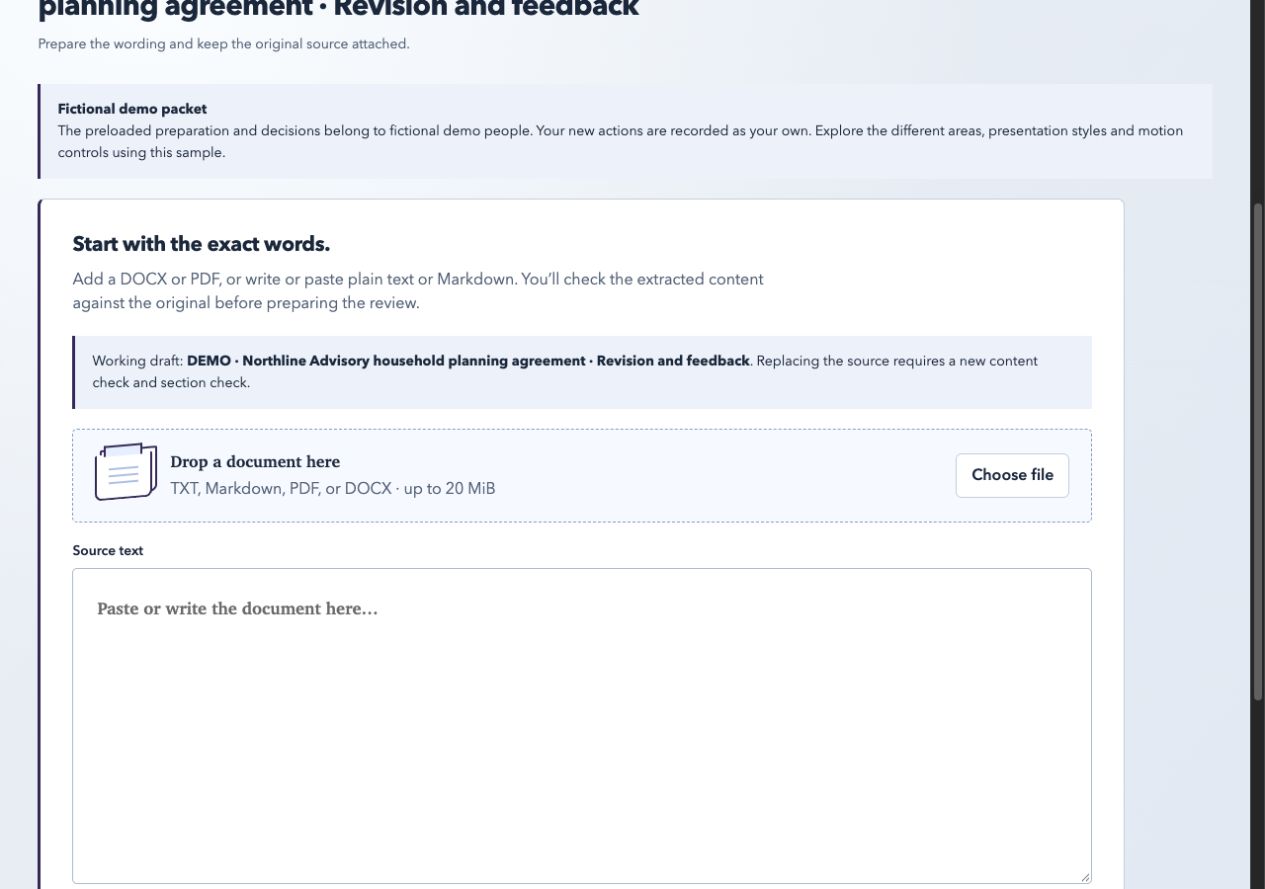
Keep in mind
- Upload a DOCX, text-based PDF, TXT, or Markdown file.
- You can also write or paste plain text or Markdown directly.
- Add one file at a time, up to 20 MiB; PDFs can have up to 100 pages.
05 / For creators
Check extraction against the original
Owner acceptance is a deliberate comparison, not an automatic conversion result.
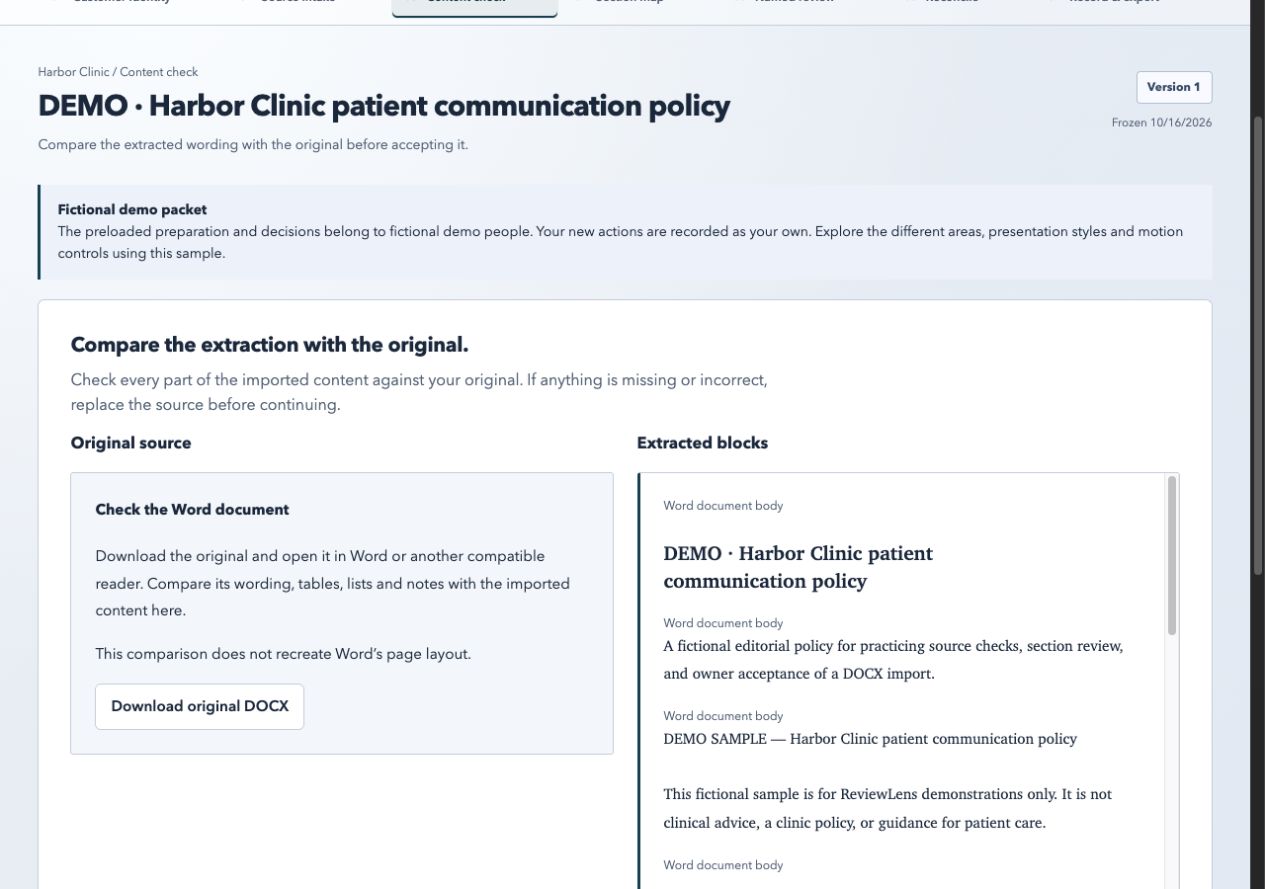
Content check displays Original source beside Extracted blocks. For a text file, read the source pane. For a PDF, open the original PDF preview or download it. For a DOCX, choose Download original DOCX and compare wording, tables, lists, and notes in Word or another compatible reader; ReviewLens does not recreate Word page layout.
Review converter notices, the number of blocks, excluded ranges, and unresolved items. Unresolved items disable acceptance. The exact action is I checked this extraction against the original. This is an owner statement about this comparison; it is not a guarantee that an imported document has no hidden meaning.
The safest comparison follows the source in order. Check the opening title, each heading, every list item, table row, footnote, and closing paragraph. If the original contains a visual distinction that the extracted blocks cannot represent, replace or paste a verified representation instead of relying on a plausible-looking preview.
Step by step
- Read every source page or paragraph that matters.
- Compare headings, lists, tables, footnotes, and punctuation.
- Resolve or replace anything listed under Resolve these before acceptance.
- Choose I checked this extraction against the original.
- Choose Continue to sections only after the server acknowledges acceptance.
- Original source
- The retained uploaded or authored bytes.
- Canonical content
- The structured blocks used for sectioning and reading.
06 / For creators
Map sections and questions
Give every source block a place and a useful reviewer question.
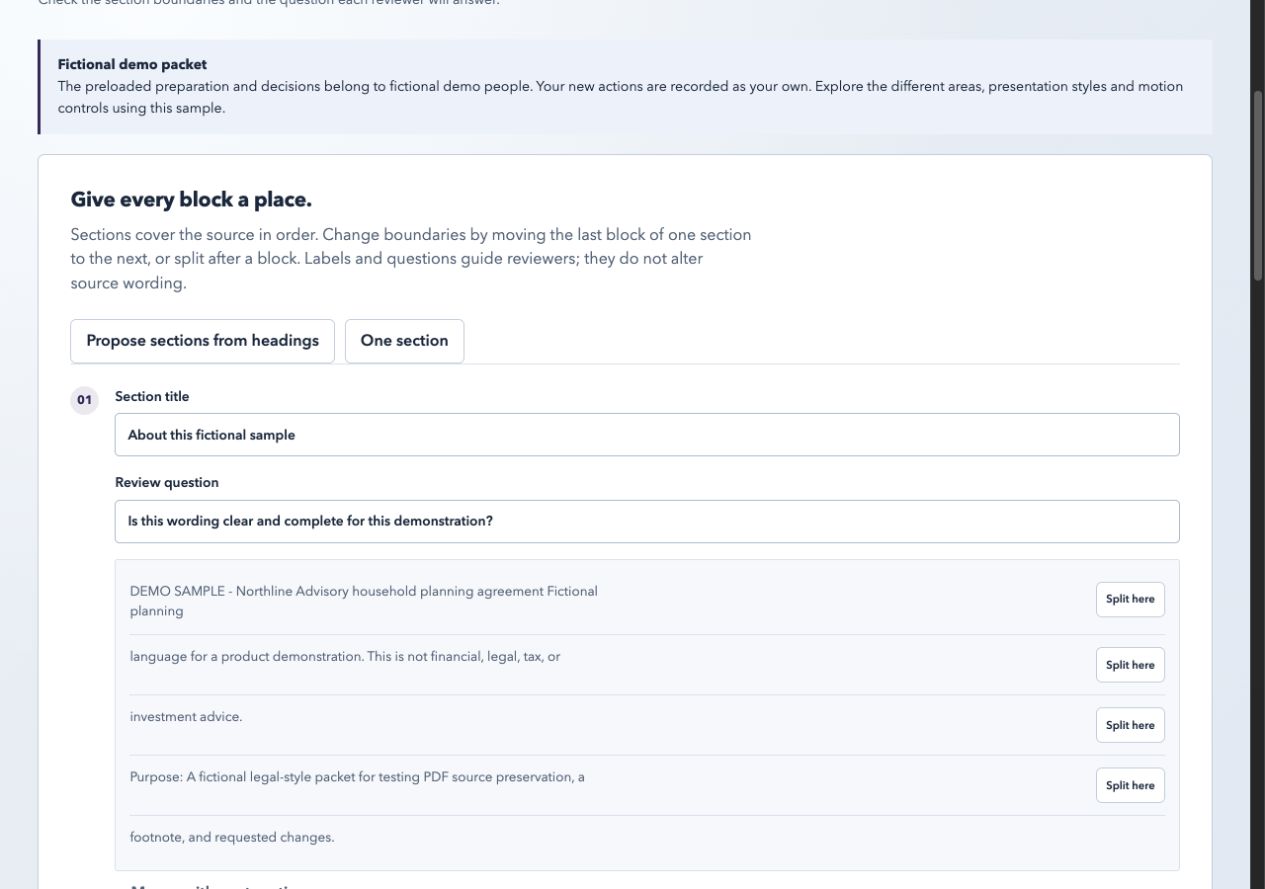
Sections cover the source in order. Propose sections from headings is a starting point, not an acceptance. One section is useful for a short document or a whole-document question. A section title is a navigation label; it does not rewrite the source. A review question tells the named person what decision to make.
The owner can split after a block or merge adjacent sections. Save section map persists the working map. I checked every section boundary is a separate acceptance statement. Unsaved edits, a stale server revision, or an empty map prevent acceptance. Good questions are specific enough that two people can understand the same decision request. “Is this okay?” is weaker than “Does this section name the correct service area?”
Step by step
- Choose Propose sections from headings or One section.
- Edit Section title and Review question for each row.
- Use Split here or Merge with next section to refine boundaries.
- Choose Save section map.
- Review the server-acknowledged map, then choose I checked every section boundary.
- Choose Continue to assignments.
07 / For creators
Set customer identity and reading style
Freeze a restrained customer presentation into each candidate.
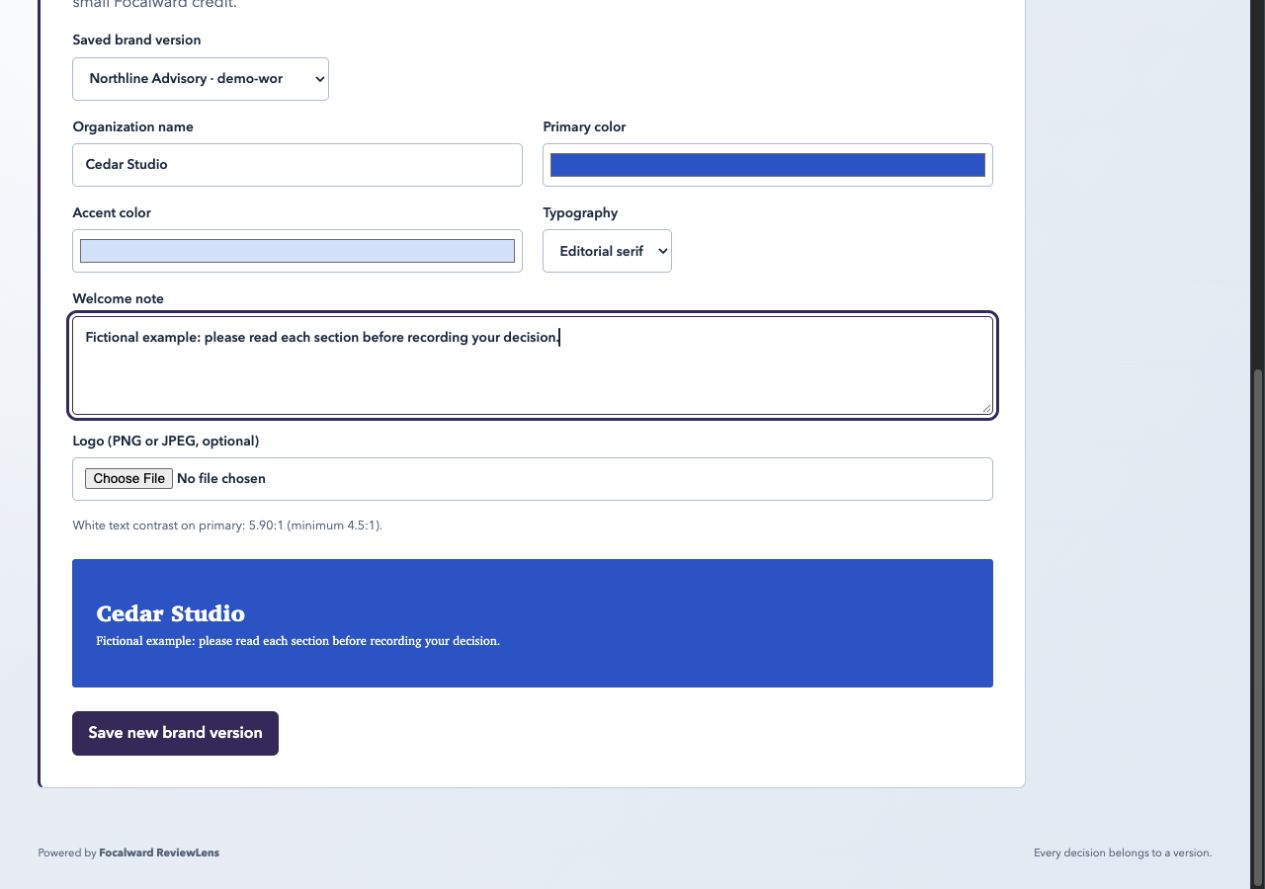
Customer identity controls the review frame, not the source. Set Organization name, Primary color, Accent color, Typography, Welcome note, and an optional Logo (PNG or JPEG). Typography choices are Clear sans and Editorial serif. White text contrast on the primary color must meet the displayed 4.5:1 minimum before saving.
Save new brand version creates a versioned profile. The selected brand is frozen with each candidate, so changing a later profile does not silently change an old record. A small Focalward credit remains on review and completion pages.
Step by step
- Choose Customer identity in Prepare, or the Appearance shortcut in the header.
- Choose a Saved brand version or fill in the brand fields.
- Check the preview and contrast ratio.
- Upload a private logo only if it is fictional or authorized for the pilot.
- Choose Save new brand version before preparing the candidate.
08 / For creators
Name reviewers and route decisions
Make responsibilities, order, deadlines, and presentation explicit.
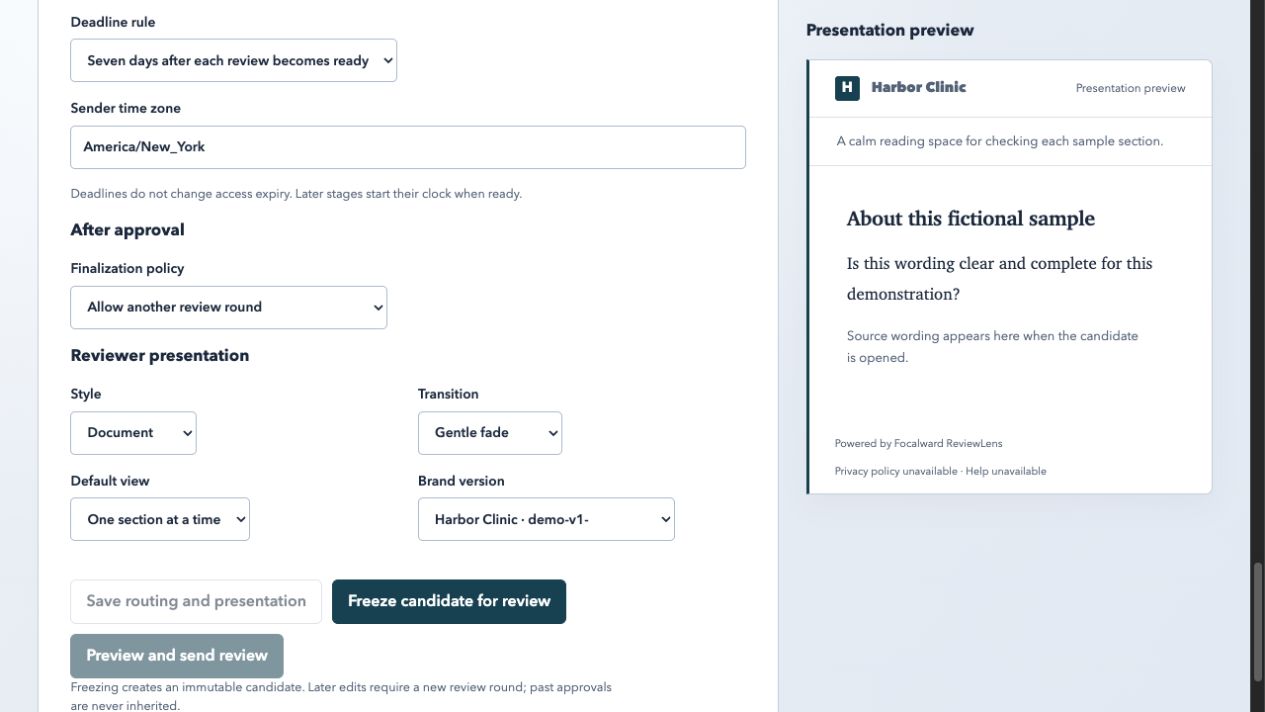
Named review assigns decisions to stable people and selected sections. Mark a person Required or Optional. Choose whether reviewers work together or after an earlier stage. Set a deadline after each review becomes ready, a fixed date and time, or no deadline. The routing tells the application which candidate and sections that person may act on.
After approval offers Close this packet after unanimous approval or Allow another review round. Closing finalizes this packet; later wording belongs in a successor. Required reviewers determine completion; Optional feedback can be useful without blocking that rule. Stages let people work together or after earlier required reviewers submit. A deadline is separate from access expiry.
Under Reviewer presentation, Style offers Document, Legal, and Web content. Transition offers No transition, Gentle fade, Vertical slide, Horizontal slide, Page flip, Card turn, Soft zoom, and Reveal wipe. Default view is One section at a time or Whole document. Choose Brand version and inspect Presentation preview. Reviewers can turn motion off or change their reading view; these preferences never change document wording or count as a decision.
Step by step
- Choose the named people and mark required status.
- Assign each person the sections they should decide.
- Set stage order and deadline policy.
- Choose the after-approval rule.
- Choose Save routing and presentation, inspect the preview, then proceed to freeze the candidate.
09 / For creators
Freeze and send an exact version
Create an immutable candidate before asking for decisions.
Review delivery shows the packet title, people, assignments, and an email preview. Freeze and send creates the immutable version that recipients will review. The queued delivery state is an application record; it is not evidence that a message left the system or arrived in a mailbox.
Before sending, check the source digest, section map, brand profile, required reviewers, deadline, and after-approval rule. If the wording changes afterward, create a successor candidate rather than editing the frozen candidate.
Step by step
- Open Review delivery.
- Read the recipient and assignment summary.
- Confirm the exact version and deadline.
- Choose Freeze and send.
- Use People and delivery to inspect invitation and delivery states separately.
Keep in mind
- The current pilot has email sending disabled.
- A seeded or fixture outbox row is not mailbox delivery.
- A new candidate does not inherit an earlier approval automatically.
10 / For creators
Invite a list of people
Paste up to 200 recipients, check each address, and prepare separate invitations.
In People and access, choose an editable Invitation packet, then Add multiple recipients. Paste email addresses separated by new lines, commas, or semicolons. A display name is optional: Casey Rivera <casey@example.test> creates a named row; casey@example.test uses the address as the invitation label. A group of 200 people still receives 200 independent invitation records, not one shared identity.
Choose Review recipient list. Check the editable names and addresses before preparing anything. Fix or remove invalid rows. Repeated addresses are skipped without merging different people or expanding access. Addresses already invited to this packet are skipped too, including expired or revoked invitations; manage those existing records in Packet invitations. Address comparison ignores capitalization while preserving dots and plus tags.
Access ends is an optional shared access expiry in your local time. It is separate from the review deadline, which is set in Named review. Prepare N invitations creates the records; it does not send mail. Then choose the recipients, sections, stages and deadline in Named review, save the routing, and use Freeze and send. Real email sending is disabled in the current nonproduction pilot.
If preparation pauses, keep the tab open. Retry remaining reuses the same request details and skips confirmed invitations. When the screen asks to Reload list and review, reload the current records and check the remaining rows before starting new requests. Progress is held in this tab, not a background import job. After a page reload, inspect Packet invitations before preparing another list.
Step by step
- Open People and access and select the Invitation packet.
- Choose Add multiple recipients, then Paste addresses.
- Paste a small fictional list and choose Review recipient list.
- Correct names and addresses; remove rows you do not want to invite.
- Optionally set Access ends, then choose Prepare N invitations.
- Continue in Named review, save routing, and use Freeze and send after checking the exact candidate.
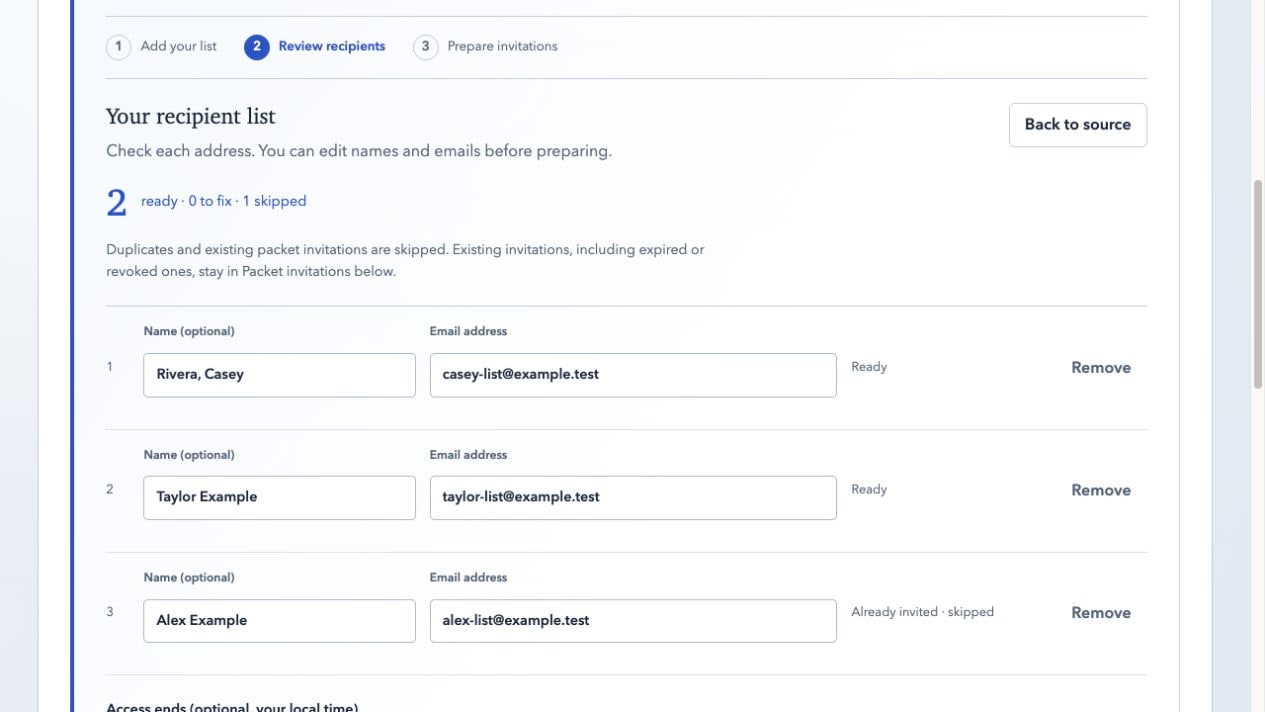
- Ready
- A valid preview row eligible for a new invitation after the current server records are checked.
- Already invited
- This address has a packet invitation; the existing invitation is managed below rather than recreated.
- Access ends
- An optional access expiry. Review due dates remain separate routing settings.
11 / For creators
Import a CSV and choose its email column
Drop a spreadsheet export, inspect sample rows, and confirm the addresses to use.
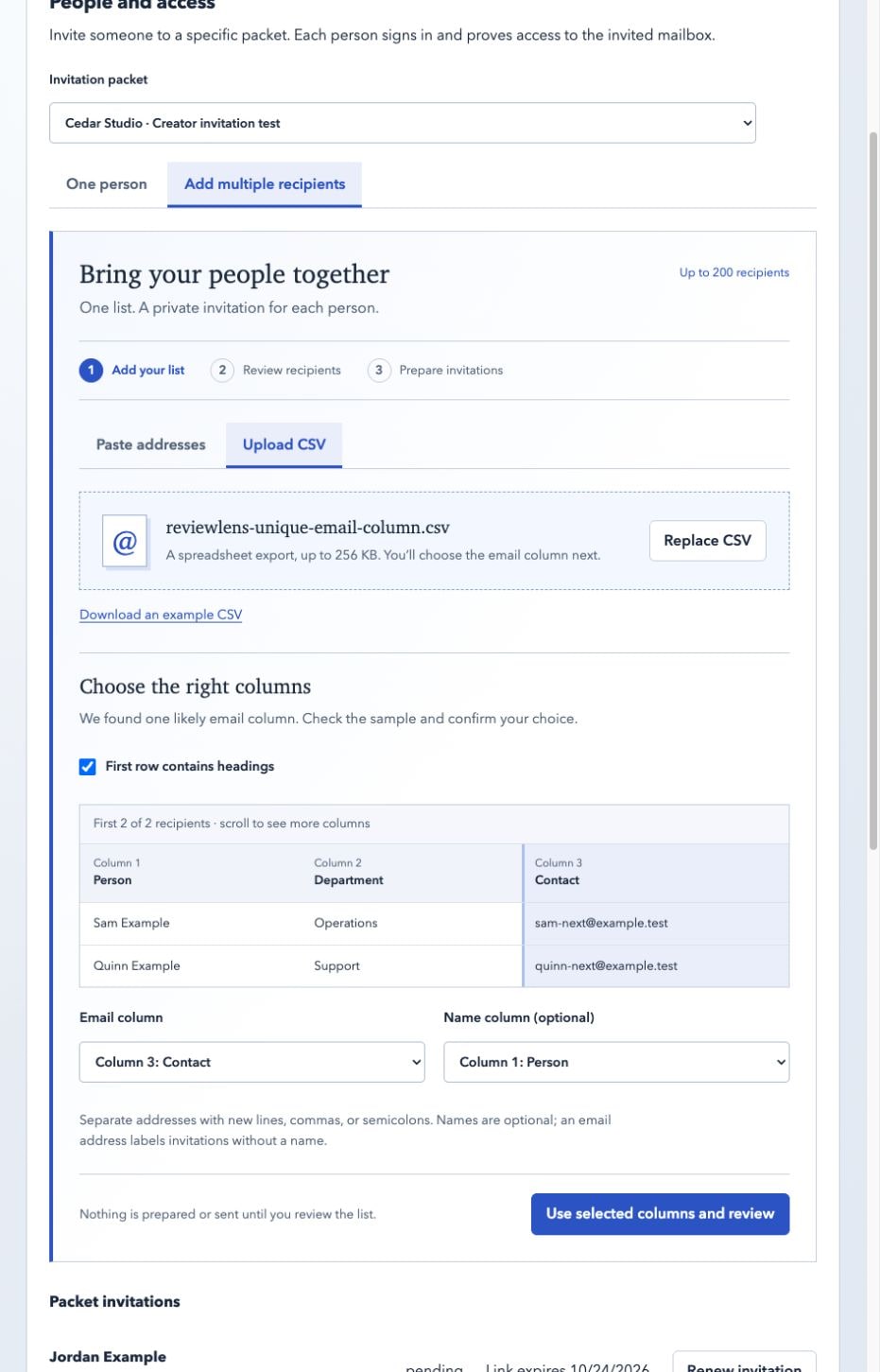
In Add multiple recipients, choose Upload CSV. Drop one CSV file into the upload area or use its file chooser. The current limits are 256 KB, 200 recipient rows and 50 columns. Parsing happens in your browser; the original CSV is not uploaded or sent to AI. Only the recipient details you confirm are sent to the authenticated API when you prepare invitations.
Review the first three sample rows. Use the first-row-heading control to distinguish a file with column headings from one whose first row is already a person. Column numbers remain visible even when names are repeated or unfamiliar. Choose the Email column and, optionally, a different Name column. Without a name column, the email address labels each invitation.
If exactly one populated column contains valid email addresses throughout, ReviewLens suggests that column. You still confirm it with Use selected columns and review. If several columns could contain emails, choose the one you intend to invite: ReviewLens does not combine work and backup addresses or quietly guess between them. The reviewed rows remain editable before preparation.
Step by step
- Export the recipient table as CSV from your spreadsheet.
- In People and access, choose a packet, Add multiple recipients, then Upload CSV.
- Drop the file or select it with the file chooser.
- Check the heading setting and the sample rows.
- Select the Email column and optional Name column, then choose Use selected columns and review.
- Correct the resulting recipient preview and prepare invitations only after checking the chosen addresses.
Keep in mind
- A suggested column is a starting point; Use selected columns and review confirms your choice.
- Choose different columns for email and name.
- If the first recipient appears as a heading, change the first-row-heading setting before continuing.
12 / For creators
Select and renew many invitations
Use aligned selection controls to renew eligible links together.
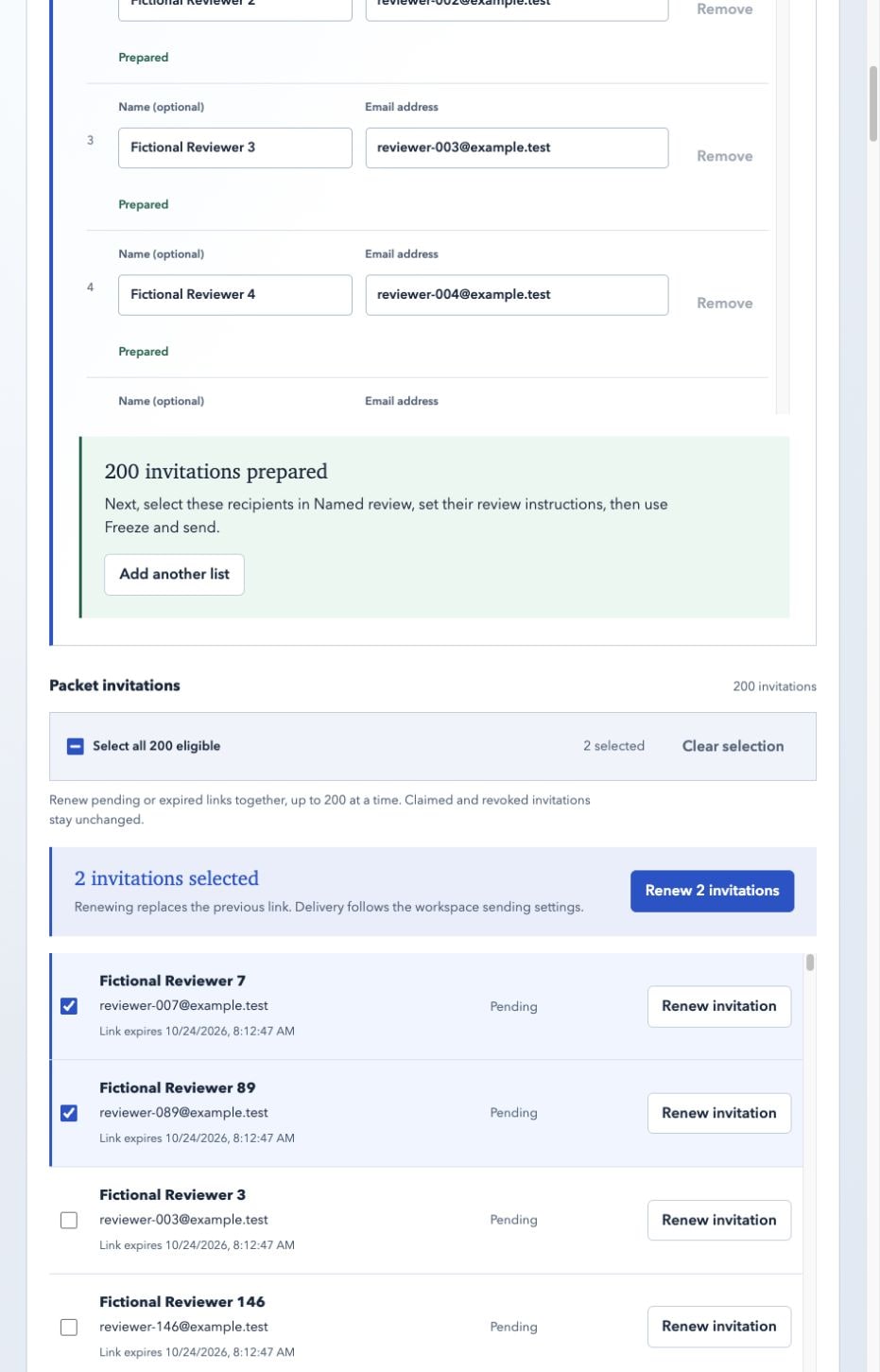
Packet invitations lists the records for the selected packet. Select individual rows with the checkbox beside each recipient name, or choose Select all eligible. The action bar shows how many invitations are selected. Up to 200 pending or expired invitations can be renewed together; when more are available, the control explicitly selects the first 200. Claimed or revoked invitations are not eligible for renewal.
Choose Renew N invitations to replace the selected links through the existing renewal workflow. Per-person results and updated link expiry remain visible. The earlier link is replaced; renewal does not itself prove delivery, extend an unrelated review deadline, expand workspace membership, or record a review decision. A single-person Renew invitation action remains available.
The action bar stays outside the bounded scrolling list. If renewal pauses, keep the tab open and follow the retry or reload instruction. A retry preserves the selected revisions and request details, skips confirmed results and stops if another change requires review. After a browser reload, check the latest invitation states before selecting another batch.
Step by step
- Open People and access and choose the packet.
- Scroll to Packet invitations.
- Select individual eligible invitations, or use Select all eligible.
- Check the selected count; use Clear selection to start again.
- Choose Renew N invitations and inspect the results.
- If interrupted, use the displayed retry or reload path before starting another batch.
13 / For creators
Reuse and manage recipient groups
Local preview: save an audience once and copy its members into future invitation lists.
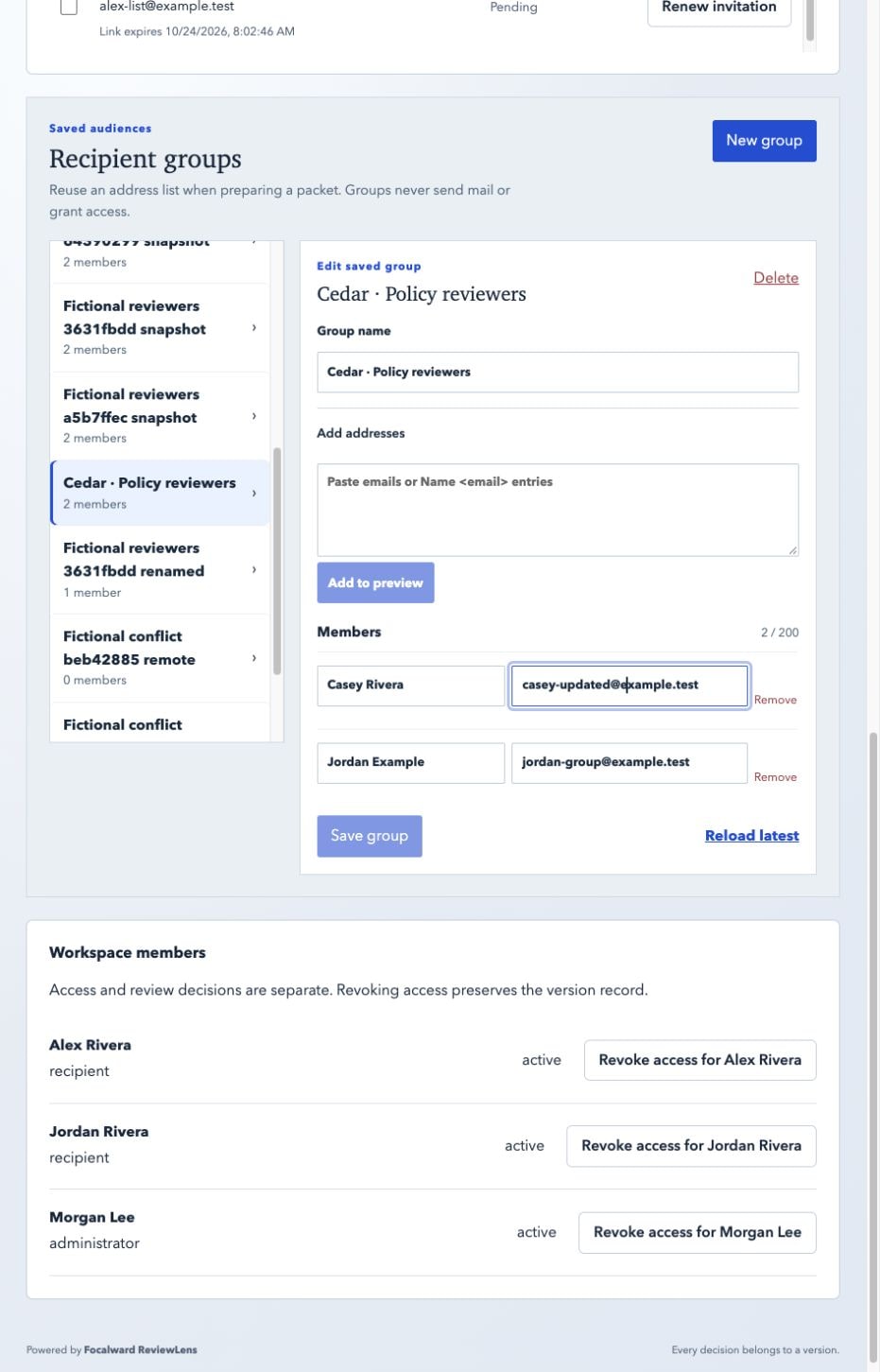
Availability: recipient groups are implemented in the local development build and are not yet deployed to the public pilot. The steps and screenshot in this chapter describe that preview. The public pilot already supports pasted lists, CSV column selection and bulk invitation renewal. If Recipient groups or Saved groups is absent there, you are seeing the earlier hosted release.
In the local preview, workspace administrators share named Recipient groups under People and access. Choose New group, enter a name, paste addresses into Add addresses, and choose Add to preview. Check the member names and emails, then Save group. Groups hold up to 200 unique email addresses. Names are optional for members; an empty group may be saved while you assemble it.
To maintain a group, select it in the directory. Rename it, edit a member name or email, use Remove, or paste additional addresses. Save group persists those changes. Delete explicitly confirms removal of the saved list. Groups are address books: saving a person in a group does not create an account, grant access, send an invitation or consume a review request.
To reuse an audience, choose an editable packet, Add multiple recipients, then Saved groups. Select one or more groups and choose Review selected groups. Their current addresses are copied into an editable snapshot, with overlapping addresses deduplicated. Add more recipients can combine another group, pasted list or mapped CSV with the preview. More than 200 unique rows is rejected without silently truncating your current list.
Save as group saves the unique addresses from a reviewed recipient preview under a new name, including people already invited to the selected packet. It does not replace the source group. Later group edits or deletion affect future selections only: copied previews, existing invitations, frozen rosters and earlier decisions remain unchanged. Use the separate invitation or access controls when you intend to change access.
If another administrator changes the same group, your save keeps your edits visible and asks you to Reload latest before saving again. Reload explicitly confirms discarding local edits. If the save outcome is unknown after a connection failure, editing pauses and an exact retry reuses the original request. Keep the tab open; after a reload, inspect the current directory before making a new group.
Step by step
- Use the local development preview until this feature is published to the pilot.
- Open People and access, then Recipient groups; choose New group and enter a descriptive name.
- Paste addresses, choose Add to preview, check each member, then Save group.
- For a new review, select its packet, Add multiple recipients, then Saved groups.
- Select groups and choose Review selected groups; edit the copied list or add another source.
- Optionally Save as group, then Prepare N invitations and continue through Named review.
- Return to Recipient groups to rename a list, edit addresses, add or remove members, or confirm Delete.
Keep in mind
- This chapter describes a local feature; the hosted pilot will gain it after an API and app deployment.
- Groups never grant permission or automatically synchronize a review audience.
- Removing an address from a group does not revoke an existing invitation or erase a review record.
14 / For creators
Read people and delivery states
Separate invitation, email, and task evidence.
People and access lets an owner prepare an invitation for a specific packet. People and delivery groups three different facts: the invitation, the email delivery status, and the review or acknowledgment task. The table can show Not sent, Queued, Accepted by email provider, Delivered to recipient mail server, Delayed, Bounced, Suppressed, Failed, or Delivery unknown.
Nudge queues a reminder request when task controls are ready. To change a deadline, choose a rule, enter a reason, and choose Save deadline. A deadline is a routing aid; it is not proof that a person has read or acted.
Step by step
- Open People and access. Prepare one invitation, paste a list, or import a CSV for the selected packet.
- Select the packet and named recipient.
- Verify the invitation state after the recipient signs in.
- Open People and delivery and choose Refresh delivery.
- Use Nudge or Save deadline only with a written reason.
15 / For creators
Reconcile decisions and revise safely
Bring independent decisions together without rewriting history.
Reconcile shows each required and optional assignment, section decisions, submissions, and withdrawals. A candidate can be approved, have changes requested, remain in review, or become closed according to its routing. A requested change is feedback on this candidate; it is not a silent edit to the source.
When you revise, create a successor packet or candidate. Earlier decisions stay attached to the earlier digest. A new version starts a fresh round. The owner can link earlier feedback to the new version, but the link preserves context only; it does not carry approval or resolution forward.
Step by step
- Open Review and choose See all decisions.
- Read each named reviewer’s section decisions and discussion.
- Compare the current candidate with the predecessor when needed.
- Make a new candidate with the revised source.
- Reassign and ask for fresh decisions on the new version.
Keep in mind
- Do not call a historical approval approval of the new candidate.
- Do not overwrite an earlier discussion to make the current version look resolved.
- A withdrawn approval remains visible in history.
16 / For creators
Read the version record and export evidence
Use digests and an authorized ZIP to preserve what the platform recorded.
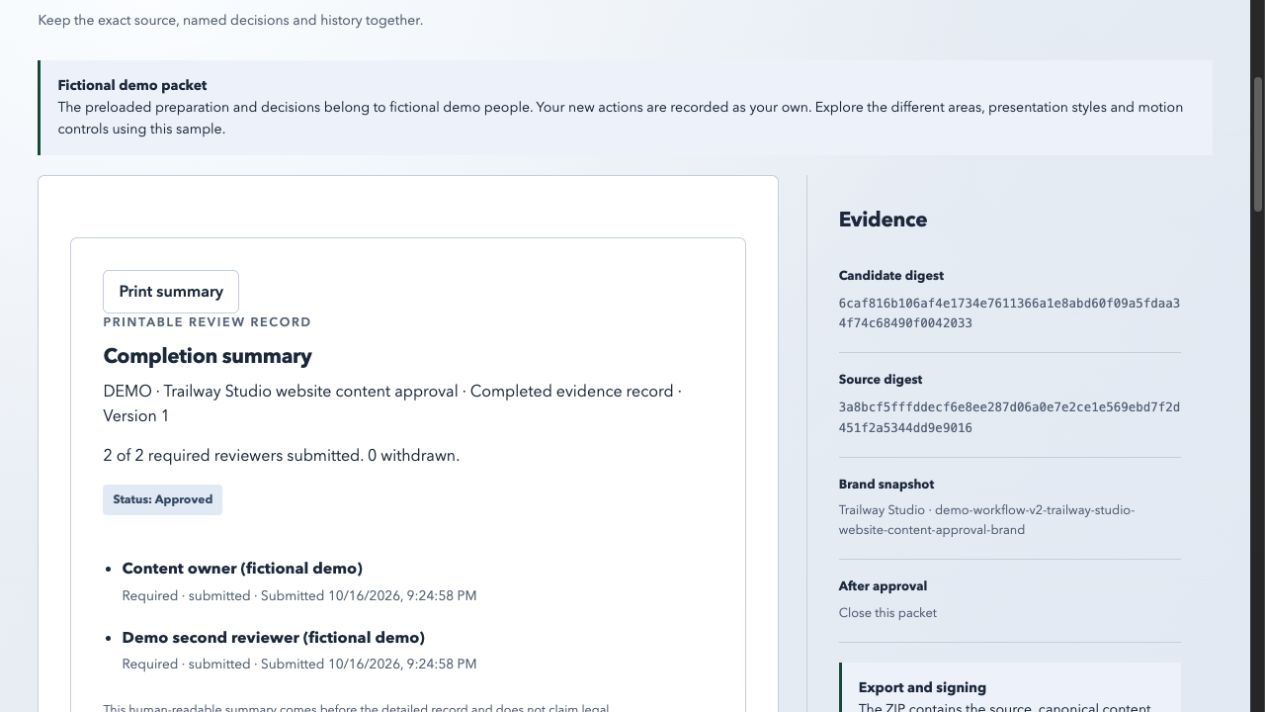
Record & export presents Version record, status, reviewers, submitted reviews, Candidate digest, Source digest, Brand snapshot, and the After approval rule. Download evidence ZIP prepares a private export containing the source, canonical content, manifest, decisions, events, and available platform receipts.
The export is a platform record of actions and artifacts. It does not establish legal identity verification, signer authority, clinical expertise, or a formal electronic signature. A cryptographic digest helps detect changes to the represented bytes; it does not prove that the content is true or that a person had authority to approve it. When handing an export to another authorized person, include the packet title, candidate version, source digest, and reason for export in your surrounding record.
Step by step
- Open Record for the selected candidate.
- Check the candidate and source digests.
- Review reviewer states and submitted decisions.
- Choose Download evidence ZIP.
- Store the export only where the authorized participants can access it.
17 / For reviewers
Open a named assignment
Confirm the packet, person, and frozen version before reading.
Your assignments lists the packets assigned to the signed-in reviewer. Open a packet only after checking its title, customer identity, reviewer name, and Version badge. The assignment grants access to selected sections and decisions; it does not grant preparation, people administration, or creator export controls.
If the link is expired, revoked, or tied to another identity, refresh the request or contact the owner through the supported channel. Do not work around a permission error by using a different account.
Step by step
- Open Your assignments.
- Choose the packet title.
- Confirm the version and required/optional reviewer label.
- Read the assignment scope before entering a decision.
18 / For reviewers
Read with section and motion controls
Choose the reading view that makes the exact source easiest to inspect.
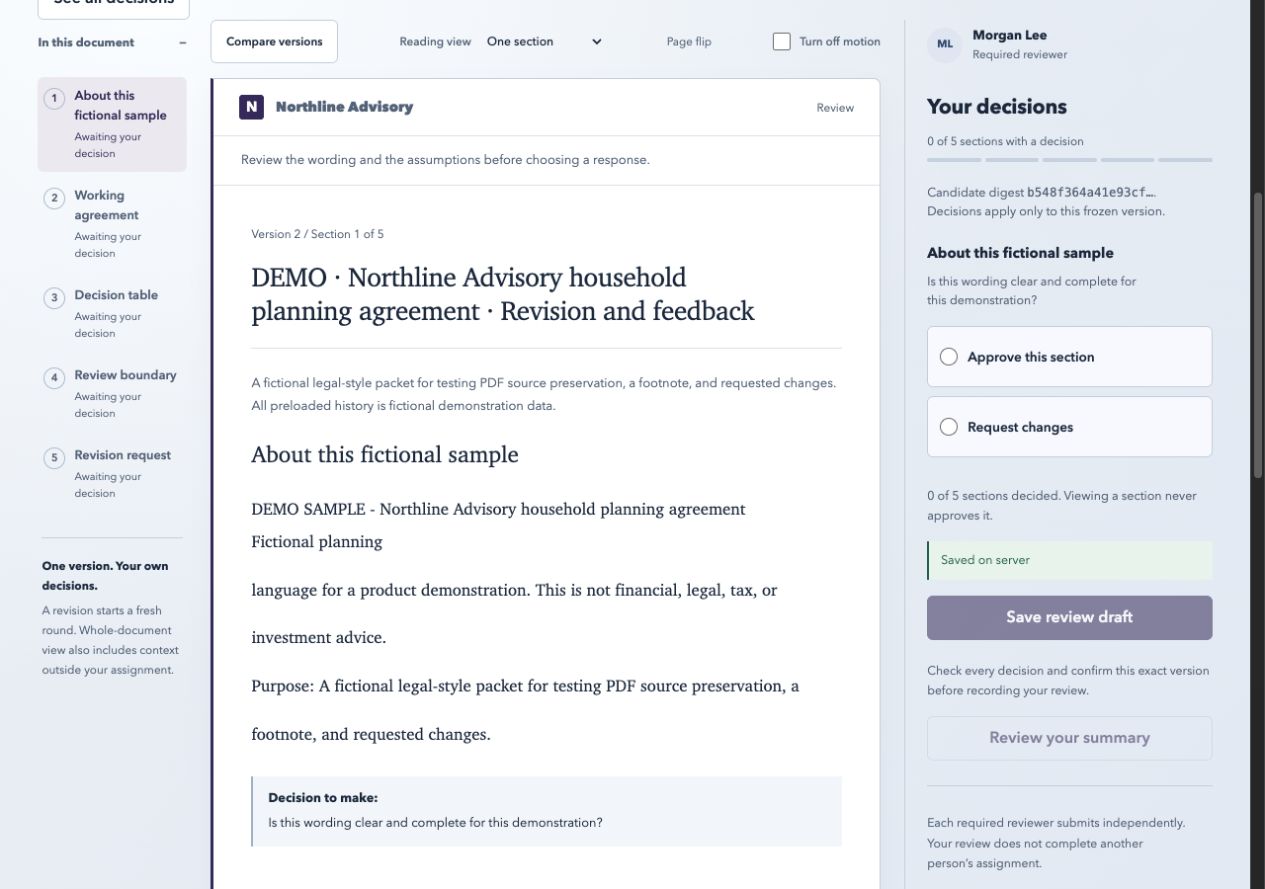
The review toolbar offers Reading view: One section or Whole document. One section keeps the decision question close to the assigned passage; Whole document adds context, including sections outside your assignment. The outline marks sections as Awaiting your decision or Decision added.
Turn off motion disables review transitions. Policy pages use the corresponding label Turn off transitions. Use Download original or Print policy when you need the retained source context. Controls change presentation and do not change the source.
Step by step
- Choose One section for focused decisions.
- Choose Whole document to inspect surrounding context.
- Use Previous and Next to move through assigned sections.
- Turn off motion if movement is distracting.
- Download the original when the rendered view is insufficient.
19 / For reviewers
Make section decisions
Answer the question assigned to each section with a clear decision.
The decision rail shows Your decisions and a count of sections with a decision. Read the section text and the Decision to make question. Choose Approve this section or Request changes, then add a concise explanation when requesting a change. A comment should identify the wording or condition that needs attention rather than imply that a later reader will infer it.
A section outside your assignment is marked Context only. Reading context is useful, but it does not create a decision. A decision applies only to the displayed frozen candidate.
Step by step
- Open a section from In this document.
- Read the source and question completely.
- Choose Approve this section or Request changes. An approval means you accept the displayed wording for this assigned question.
- If requesting a change, use Describe the change or suggest wording….
- Check the progress count before moving to the next section.
20 / For reviewers
Save, confirm, and submit
Treat saving a draft and submitting an independent decision as different actions.
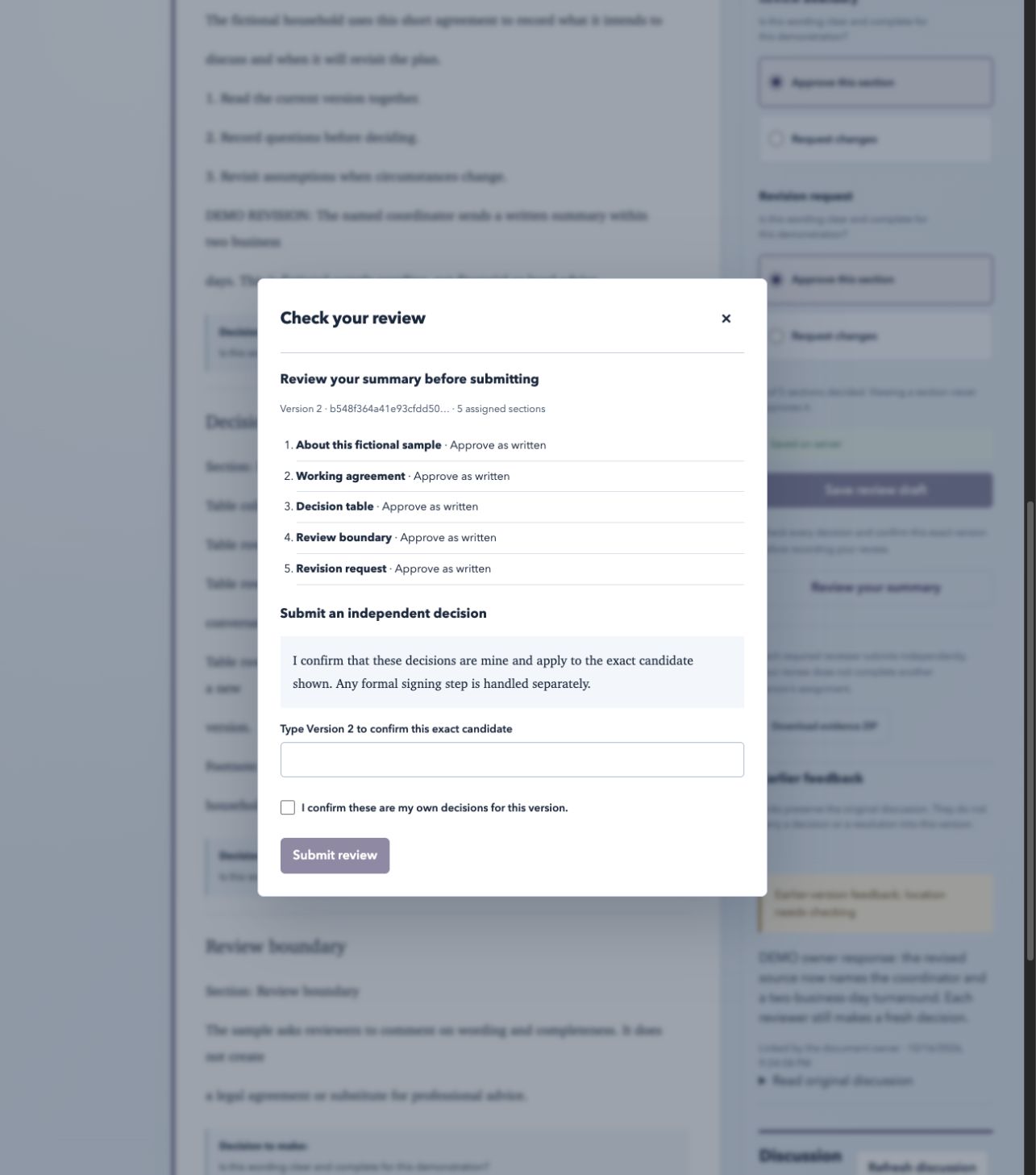
Save review draft keeps an in-progress review available while you continue. Submit review records the independent decision only after the required assigned sections are complete and the server has refreshed the candidate. The summary asks you to type the displayed version in the form Version N and confirm that you are deciding on that exact version.
After submission, the screen shows Review submitted and Recorded decisions. If the active candidate changes before submission, compare the server version and decide whether to continue. A later withdrawal is an additional recorded event; it does not erase the original submission from history.
Step by step
- Choose Save review draft while your review is incomplete; wait for Saved on server.
- Resolve any server conflict by comparing your draft with the current candidate.
- Choose Review your summary and read every section decision.
- Type the exact displayed version, such as Version 2.
- Check I confirm these are my own decisions for this version., then choose Submit review.
- Use the withdrawal flow only when you intend to add that historical event.
21 / For reviewers
Discuss a section without changing its decision
Keep questions and responses tied to a candidate and section.
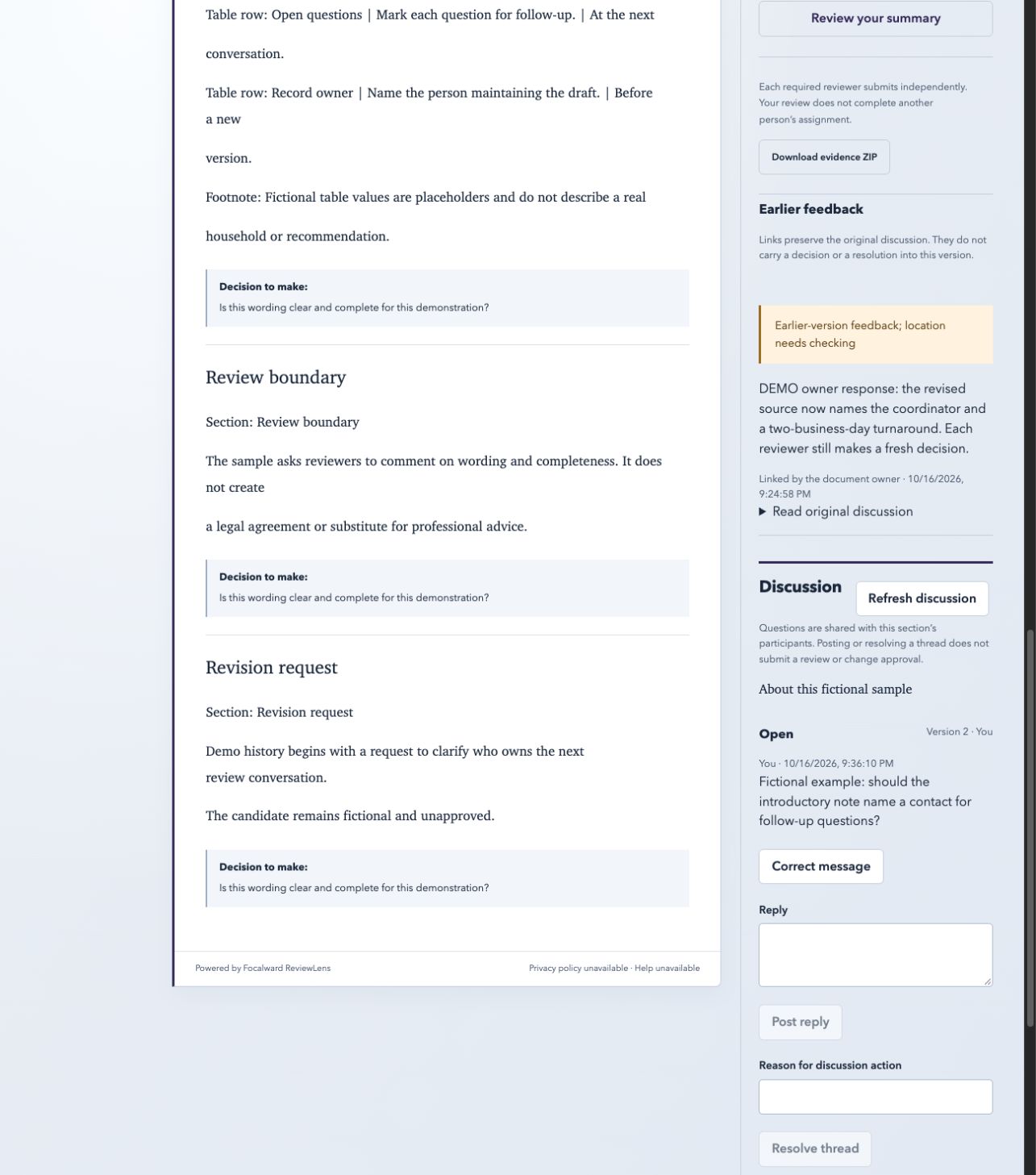
Section discussion is a conversation attached to the candidate and section. Participants can ask a question, explain a concern, or post a correction. The discussion does not edit source text and does not itself approve a section. If a decision changes, record the decision through the decision control so both artifacts remain understandable.
Review discussion participants are limited to the authorized candidate context. Policy Q&A is a different private owner-recipient conversation and should not be described as a general review thread.
A Quote from this section is optional: copy exact wording from one paragraph or heading, or leave it blank for a section question. Correct message preserves the original history. Where permitted, Resolve thread asks for a reason. Resolving a conversation does not submit an approval or resolve the next candidate automatically.
Step by step
- Choose the relevant section.
- Read existing messages and corrections.
- Write a focused question or explanation.
- Choose Post question. Use Reply and Post reply to continue an existing thread; a private review draft is not shared discussion.
- If the discussion changes your view, update the section decision explicitly.
22 / For reviewers
Compare versions
Inspect exact changes while preserving the boundary between before and after.
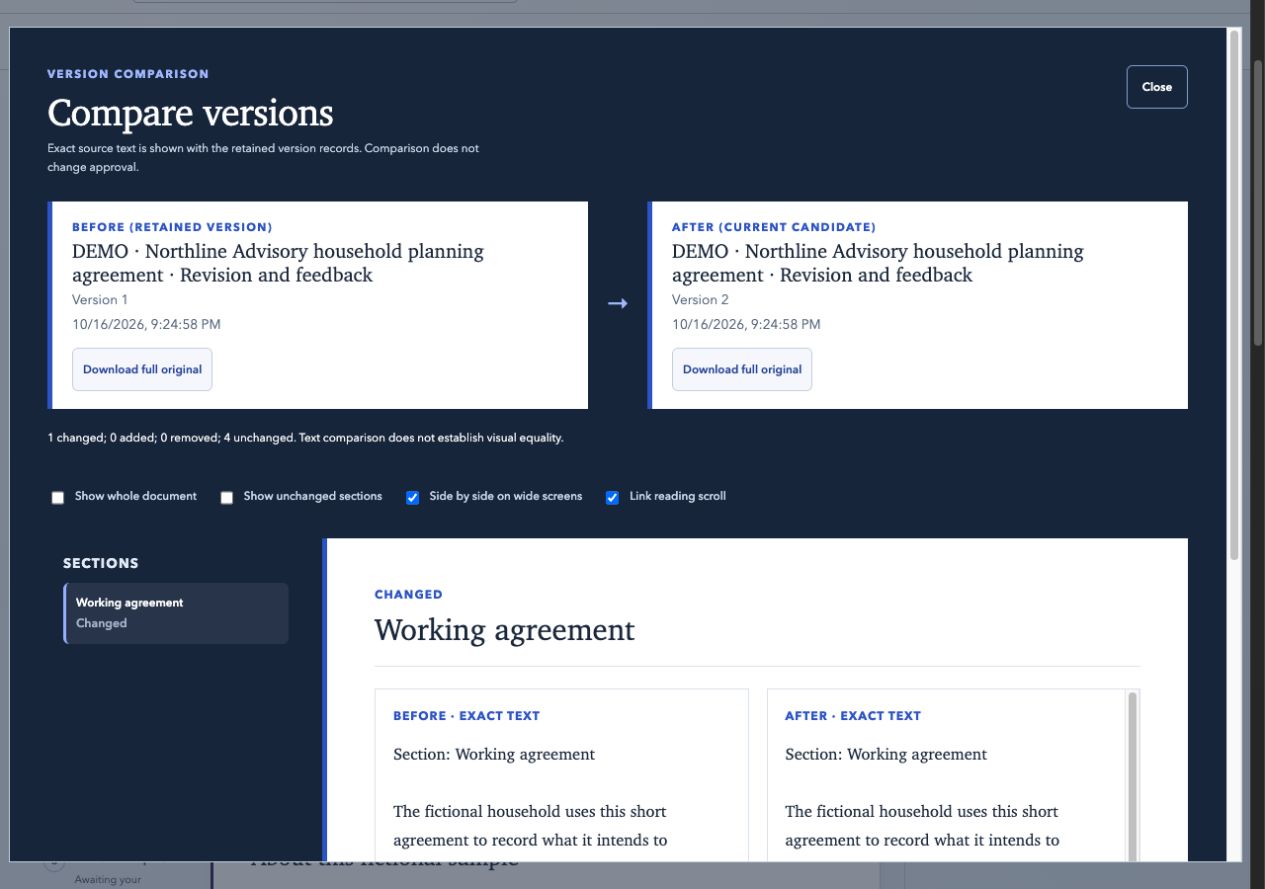
Compare versions chooses a predecessor and current candidate. Sections can be Unchanged, Added, Removed, or changed. The panes label Before · exact text and After · exact text. Added text is marked with + added and removed text with − removed. You can show unchanged sections, use linked scrolling, switch the layout, and download each full original.
The comparison is deterministic text evidence. It does not infer whether a change is better, compliant, approved, or safe. If predecessor history is too large to scan, choose a version explicitly. Read both panes even when the summary says only one section changed; a removed section may be absent in the current candidate, while an added section may have no predecessor text.
Step by step
- Open Compare versions from the candidate review or record.
- Select the predecessor when more than one exists.
- Read each changed section and its exact operations.
- Check missing sections and unchanged context.
- Download full original files when layout or non-text content matters.
23 / Policies
Publish an approved policy
Turn an approved candidate into a versioned policy publication.
Only an approved candidate can be published as a policy. Publish an approved policy opens a dialog where the owner can create a new policy lineage or select an existing one. Set Policy title and Effective date and time. A future date creates an upcoming policy. Existing requests keep the version they were created for.
Publication does not convert editorial approval into a legal signature. The dialog says explicitly that editorial approval remains separate from acknowledgment.
Step by step
- Open Record for an approved candidate.
- Choose Publish as policy.
- Choose Create a new policy or an existing policy lineage.
- Enter the title and effective date/time.
- Review the time zone and exact Version.
- Choose Publish this version.
24 / Policies
Distribute a published policy
Create a recipient task while keeping publication, delivery, and response separate.
Policies lists published versions available to the current authorized user, including versions already acknowledged. Open a policy to read it, then create a receipt or confirmation campaign for named recipients. A campaign states what the recipient is being asked to record and keeps the policy version and candidate digest attached.
The distribution view can show a pending task, an acknowledged response, or Unable. Delivery remains a separate state. A delivered message never means the recipient read the policy or responded.
Step by step
- Open Policies and choose the published version.
- Read the policy and confirm its version/effective date.
- Create a campaign with a clear receipt or reading statement.
- Choose named recipients and a deadline.
- Inspect recipient response and delivery states separately.
25 / Policies
Acknowledge or decline a policy request
Record a human response without confusing it with review approval or signing.
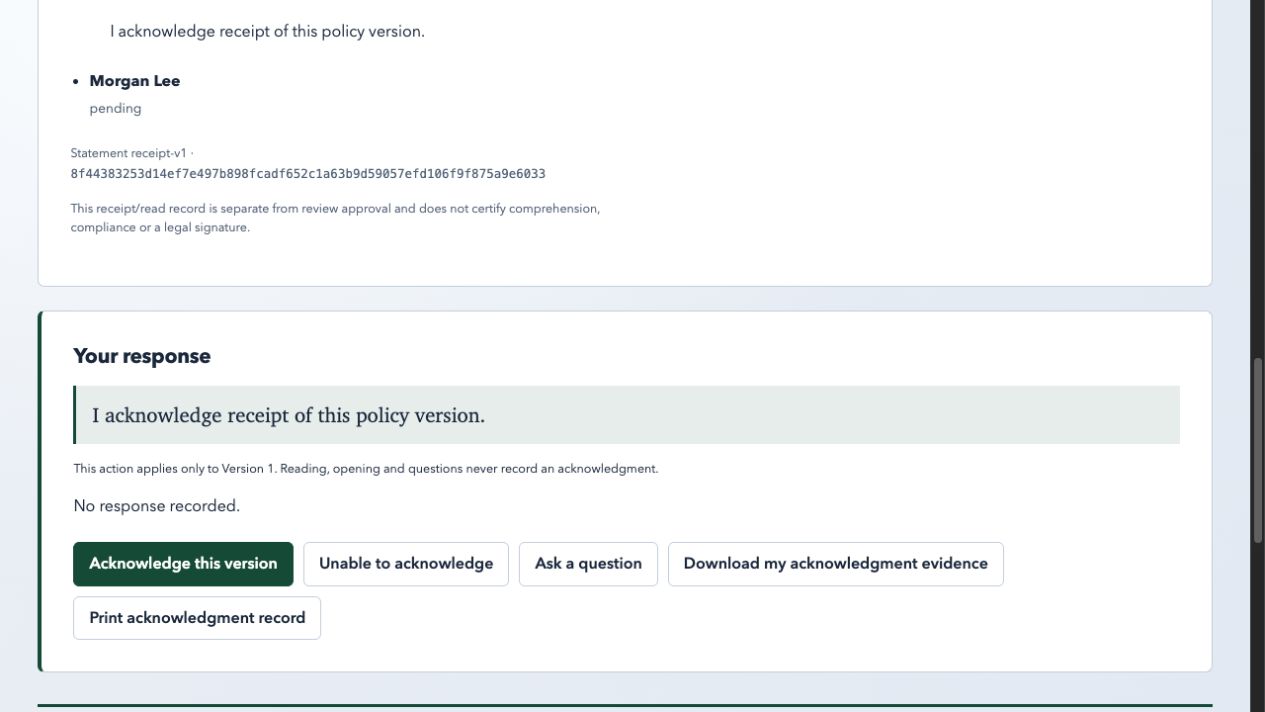
A policy task shows the title, Version, owner, effective date/time, deadline, and either Receipt of policy or Confirmation of reading. Read the policy with One section at a time or Whole document, then choose Acknowledge this version or Unable to acknowledge. A question is private to the named recipient and policy owner; it does not record an acknowledgment.
The confirmation checkbox says I am making this response for this exact version. The response history retains Acknowledged, Unable, withdrawal, statement, time, and supersession information. This is a human receipt/read statement and platform record, not a formal signature or compliance result.
If the policy becomes upcoming, the recipient can see the future-effective label and should read the effective time carefully. If the owner withdraws source approval or the request, the task explains that earlier responses remain part of the record. A response to an earlier version does not answer a later campaign automatically.
Step by step
- Open the acknowledgment task.
- Read the exact published version and statement.
- Choose Acknowledge this version or Unable to acknowledge.
- If Unable, explain why; if withdrawing, provide a reason.
- Check I am making this response for this exact version.
- Choose Confirm acknowledgment, Record Unable, or Confirm withdrawal.
- Use Download my acknowledgment evidence or Print acknowledgment record if authorized.
26 / Workspace reference
Account and workspace settings
Find appearance and account controls without treating them as document evidence.
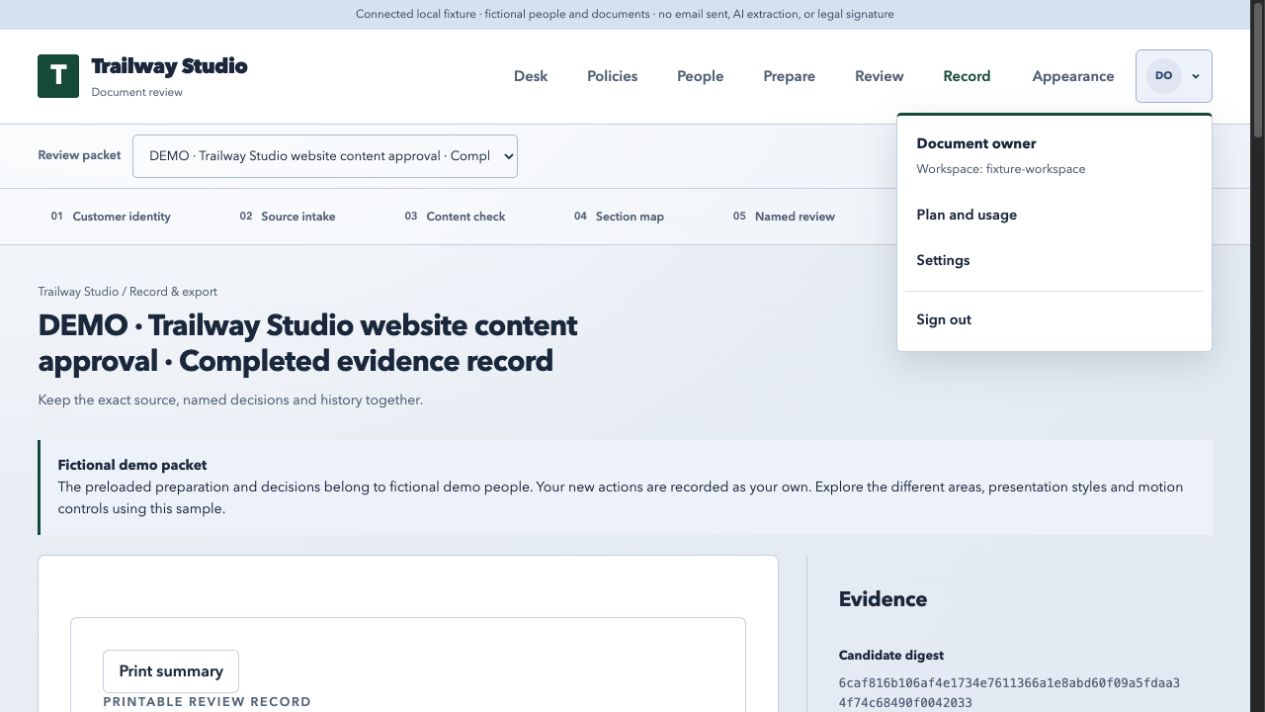
The account menu identifies the signed-in person, workspace, settings, Plan and usage when available, and sign out. Settings can include notification preferences and, for owners, a route back to Workspace appearance. These controls change how the workspace behaves; they do not change a frozen source or recorded decision.
Keep account recovery information current and use the supported sign-in route. If the current session cannot load a record, refresh and check the workspace before attempting another action.
Step by step
- Open the account menu.
- Choose Settings for workspace preferences. Customer identity remains in Prepare and Appearance; it is not a personal color theme.
- Choose Plan and usage only if you are a billing administrator.
- Sign out when finished on a shared device.
27 / Workspace reference
Plans and usage
Understand the approved catalog while the pilot remains free and sandbox-only.
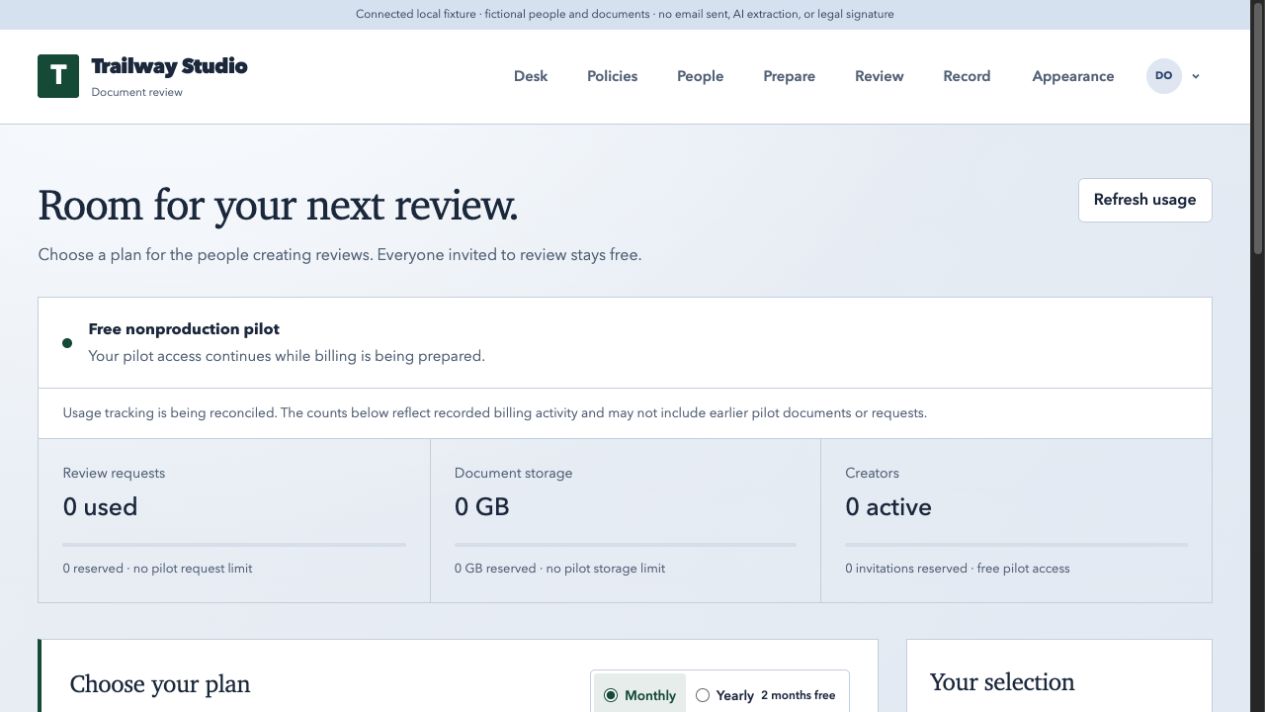
Personal, Professional, and Organization are the approved planned creator subscriptions. Invited reviewers stay free. The current free pilot does not require purchasing one of these plans. The reference below shows USD prices before tax and the included creator, request, and storage allowances.
Approved packs are 25 GB for $5/month or $50/year, 100 GB for $15/month or $150/year, and 500 review requests for a one-time $25. The approved design includes a 14-day no-card trial with 10 requests. Annual request allowances are pooled across the paid year; monthly allowances are monthly. Invited reviewers are free.
These are approved planned commercial terms, not a live public offer. The current pilot remains free; Stripe is sandbox-only and live charging is disabled. A pending checkout or redirect does not grant paid access. Access must follow server-verified billing facts. A 90-day read-only export window after cancellation is a design requirement, not a promise already provided by this pilot.
On Plan and usage, select Monthly or Yearly, choose a plan, and set each storage-pack quantity independently. Your selection shows the total. Review plan change opens the quote when purchases are connected. Request packs and Review request purchase are separate from storage and the subscription total; packs need an active paid plan. Included requests are used first, and there is no automatic refill or overage charge. Payment details and invoices opens payment management when available. Disabled purchase controls in the local demonstration mean purchases are unavailable, not that selecting another pack should grant access.
The approved lifecycle keeps reductions for renewal and shows their effective date. Cancellation ends renewal rather than immediately deleting records. Limits and plan changes do not delete originals or decisions; retention and recovery still require production acceptance. Follow the displayed quote and provider status for the assigned sandbox test, and never enter a real payment method for a pilot mission.
Step by step
- Open Plan and usage as a workspace billing administrator.
- Review the quoted plan, interval, creators, requests, and storage.
- Treat any pending payment or redirect as pending until the workspace confirms access.
- Use the pilot with fictional documents while commercial launch remains disabled.
- Personal — planned
- $9/month or $90/year. 1 active creator, 25 requests per month or 300 pooled per paid year, 1 GB storage.
- Professional — planned
- $49/month or $490/year. 3 active creators, 250 requests per month or 3,000 pooled per paid year, 25 GB storage.
- Organization — planned
- $199/month or $1,990/year. 10 active creators, 2,000 requests per month or 24,000 pooled per paid year, 100 GB storage.
28 / Workspace reference
Privacy, access, and evidence boundaries
Use the smallest access needed and keep records understandable.
Use fictional data in the development pilot. Assign people to the packet and sections they need. Owners can revoke access; revocation preserves the version record. A reviewer sees the named task and authorized context. Do not put health, financial, credential, customer, or confidential business data into fixture demonstrations.
ReviewLens preserves source bytes, canonical content, version manifests, decisions, events, and available platform receipts for authorized exports. These artifacts show what the platform stored and what a named account did. They do not make broad privacy, regulatory, identity, or legal certifications on their own.
Step by step
- Choose a fictional or authorized test document.
- Grant packet-specific access to named people.
- Review the access list before sending or publishing.
- Revoke access with a reason when access should end.
- Export records only for authorized participants.
Keep in mind
- Do not infer ownership from a client-supplied name alone.
- Do not describe a platform receipt as a qualified signature.
- Do not use a development screenshot as proof of production retention or deletion behavior.
29 / Workspace reference
What you can do in the pilot
Explore the current review workflows and supported source formats.
Prepare a packet by writing or pasting plain text or Markdown, or upload a DOCX, text-based PDF, TXT, or Markdown file. Check the extracted content and section map, choose your branding, and assign named reviewers to an exact version.
Reviewers can read section by section or as a whole document, ask questions, compare versions, save drafts, and submit independent decisions. Creators can reconcile feedback, export records, and publish approved policies for receipt or reading acknowledgment.
Use fictional documents in this development pilot. Real email sending is disabled, and billing uses Stripe sandbox. Review decisions and policy acknowledgments are platform records, not formal electronic signatures or legal identity verification. Production retention/deletion and public privacy documentation remain separate launch requirements.
The hosted pilot supports pasting recipient lists, CSV column confirmation, editable previews, and selection and renewal of up to 200 eligible invitations. Saved recipient groups and combining additional sources are documented as local development previews until their API and app release is deployed. Local screenshots do not establish hosted availability.
Step by step
- Use test documents while exploring the pilot.
- Choose a supported file or write or paste your content.
- Check the original, extracted wording, and section boundaries before inviting decisions.
- Use the troubleshooting reference if a particular import needs attention.
Quick reference
Glossary
- Acknowledgment
- A named recipient’s recorded response to a published policy statement.
- Active candidate
- The current frozen version that can receive new decisions.
- Assignment
- A packet-specific permission and decision scope granted to a named person.
- Billing administrator
- A workspace administrator allowed to view Plan and usage and manage commercial settings.
- Candidate
- A numbered immutable version of a packet prepared for review.
- Candidate digest
- A digest identifying the exact candidate manifest and represented content.
- Canonical content
- Structured text blocks produced from the accepted source representation.
- Content check
- The owner’s comparison of extracted content with the retained original source.
- Creator
- A person preparing packets, routing review, reconciling decisions, or managing workspace policy.
- Customer identity
- The versioned name, colors, typography, note, and optional logo framing the review.
- Decision
- A reviewer’s section-level response on the exact active candidate.
- Delivery state
- The application’s current view of email-provider or outbox processing.
- Discussion
- A candidate- or section-scoped conversation that does not itself change source text or approve it.
- Evidence ZIP
- An authorized export containing source, canonical content, manifest, decisions, events, and available receipts.
- Exact version
- The frozen numbered candidate named by a decision or policy response.
- Fixture
- Synthetic local or nonproduction data used for evaluation.
- Frozen
- A candidate state in which source, presentation, and version identity are stable for review.
- Invitation
- A request for a named person to claim access to a packet or policy task.
- Lineage
- The version history connecting successive policy publications or candidates.
- Manifest
- Metadata describing a candidate, its source, sections, assignments, and digests.
- Named reviewer
- A person with an explicit assignment and scoped decision permissions.
- Original source
- The retained bytes supplied by writing, pasting, or uploading a document.
- Packet
- The workspace object that groups preparation, candidates, people, discussions, and records.
- Pilot
- The current nonproduction ReviewLens environment used with test documents.
- Platform receipt
- A server record protecting or describing a recorded platform event; it is not automatically a legal signature.
- Policy campaign
- A distribution request asking named recipients for a receipt or reading response.
- Policy publication
- An approved candidate made available as a versioned policy with an effective date.
- Preparation
- Owner work before a candidate is frozen: source, sections, brand, routing, and deadlines.
- Reconcile
- Owner review of independent decisions and feedback before a next version.
- Requested change
- A reviewer response identifying wording or conditions that need revision.
- Review approval
- A recorded decision on a candidate; it is not proof of authority, expertise, or formal signing.
- Review question
- The prompt attached to a section to guide a reviewer’s decision.
- Review task
- The actionable work assigned to a named reviewer for a candidate.
- Reviewer
- A named person who reads assigned content and submits section decisions.
- Sandbox
- A provider test environment where no live charge or commercial entitlement should be inferred.
- Section map
- An ordered grouping of canonical source blocks with titles and reviewer questions.
- Source acceptance
- The owner’s recorded confirmation that extracted content was checked against the original.
- Source digest
- A digest identifying retained original source bytes.
- Successor candidate
- A later version created after revising an earlier candidate.
- Task readiness
- The state in which an authorized recipient can act on a current task.
- Unable
- A policy response stating that the named recipient cannot acknowledge the version, with a reason.
- Unresolved item
- An extraction issue that blocks source acceptance until resolved or replaced.
- Version record
- The readable record of a candidate, its people, decisions, events, and evidence references.
- Whole document
- A reading mode showing the complete canonical document rather than one section.
- Recipient group
- A saved workspace address list in the local preview. Loading it copies members into a recipient preview; it never grants access or synchronizes existing invitations.
- Email column
- The explicitly confirmed CSV column whose addresses will be invited.
- Name column
- An optional CSV column supplying display names for recipient rows.
- Recipient preview
- Editable names and addresses checked before preparing separate invitation records.
- Access ends
- An optional access expiry, separate from the review due date.
- Renew invitation
- Replace an eligible pending or expired invitation link using the existing renewal workflow.
Quick reference
Troubleshooting
If these checks do not resolve the problem, contact support@focalward.com with the screen name and error message. Keep document content, sign-in codes, tokens, and payment details out of your message.
The Content check button is disabled.
The extracted document contains unresolved items or the server has not acknowledged the latest source.
- Read Resolve these before acceptance.
- Compare the original and extracted blocks.
- Replace the source with a clean DOCX or text-based PDF, or paste verified text.
- Save and inspect again.
The file picker rejects the document.
The file needs a supported format and must meet the size and readability requirements.
- Export the source to DOCX or text-based PDF.
- Check that the file is no larger than 20 MiB.
- Use paste for a verified text representation.
- Retry after replacing the staged file.
A PDF preview opens but extracted text is incomplete.
The PDF is scanned, mixed, image-heavy, rotated, ambiguous, or uses a layout the extractor cannot safely represent.
- Open the retained original PDF.
- Check the pages named in extraction notices.
- Do not accept unresolved content.
- Use a clean text-based PDF or paste verified text.
Save section map or acceptance remains unavailable.
There are unsaved changes, no sections, or a newer server revision.
- Read the conflict panel.
- Compare Your unsaved sections with Server sections.
- Choose Discard my section edits and load server version only if you want to abandon local changes.
- Save the final map, then accept each boundary.
An invitation link does not open the assignment.
The signed-in identity, invited mailbox, invitation state, or session does not match.
- Sign in with the invited identity.
- Complete mailbox verification when requested.
- Choose Refresh request.
- Ask the owner to inspect People and access if the invitation is revoked or expired.
Delivery shows Not sent, Queued, or Delivery unknown.
The current pilot has email sending disabled or the provider state is not authoritative.
- Read the invitation, delivery, and task columns separately.
- Choose Refresh delivery.
- Do not claim the recipient received or read the message.
- Use fixture data for demonstrations and contact the owner through the approved route.
Submit is disabled.
A required section has no decision, the typed version does not match, the candidate is not active, or a refresh failed.
- Review the progress count in Your decisions.
- Open each Awaiting your decision section.
- Type the displayed version exactly, such as Version 2.
- Refresh the saved review and resolve any server comparison before submitting.
The server says the packet changed while saving.
Another owner or mutation advanced the packet revision.
- Keep your local wording visible.
- Choose the comparison or retry server comparison action.
- Read both versions.
- Reload only after deciding which changes to preserve.
Confirm acknowledgment or Record Unable is disabled.
The request is inactive, the named recipient is not the current session, the confirmation checkbox is clear, or Unable lacks a reason.
- Check the policy version, recipient, deadline, and active state.
- Sign in as the named recipient.
- Check I am making this response for this exact version.
- Enter a reason for Unable or withdrawal.
A policy question appears but no acknowledgment is recorded.
Questions are private Q&A and do not count as a policy response.
- Read the answer or await the owner’s response.
- Return to Your response.
- Choose Acknowledge this version or Unable to acknowledge.
- Confirm the exact-version statement separately.
A checkout or portal redirect completed but the plan has not changed.
Provider redirect is not authoritative entitlement; the sandbox may still be pending or the pilot may reject live charging.
- Return to Plan and usage.
- Refresh the server-verified summary.
- Do not retry repeatedly or assume paid access.
- Continue using the free pilot and contact the workspace administrator if the sandbox result remains unclear.
My spreadsheet has several email columns.
ReviewLens needs one confirmed column for the intended recipient address.
- Check the first three sample rows and heading setting.
- Choose the intended Email column and an optional different Name column.
- Choose Use selected columns and review; check the resulting addresses before preparation.
An address is skipped as already invited.
This packet already has an invitation for that address, including an expired or revoked record.
- Find the person in Packet invitations.
- Renew an eligible pending or expired link rather than recreating the invitation.
- Use the separate access controls if the existing record is revoked; a duplicate import does not restore access.
Preparing or renewing many invitations paused.
A request failed, its outcome is unknown, or a newer revision needs review.
- Keep the tab open and inspect confirmed results.
- Use Retry remaining when offered; it preserves the request details.
- If asked to Reload list and review, check current invitation states before another attempt. After a full page reload, inspect the list before preparing new records.
I cannot find Recipient groups on the public site.
Saved groups are still a local development preview; the public app has not received that API and UI release.
- Use the hosted Paste addresses or Upload CSV workflow for now.
- Use the local development preview to evaluate saved groups.
- Once published, workspace administrators will manage groups in People and access; group membership itself never grants permission.
My saved group changed elsewhere.
Another administrator saved a newer revision while this group was open in the local preview.
- Keep your unsaved edits visible and compare what you intended to change.
- Choose Reload latest only when ready to discard those local edits.
- Apply the intended changes to the current group, then save again.