Today
A daily view with protein and fluids, Today’s notes, a seven-day recording strip, and Next in your routine prompts.
App guide and tutorials
VigorLens is a local-first wellness journal for adults using prescribed GLP-1 medication. Record meals, fluids, movement, comfort, and observations so you can review your routine and prepare for care visits.
Open Today to see your current notes and routine prompts.
Tap Log something to record a Meal, Fluid, Movement, or Comfort entry.
Use the bottom navigation to move between Today, Journal, Strength, and Progress; open the settings icon in the header for Preferences and subscription.
Your saved journal is available on the device without an account; account sign-in is for protected cloud recovery and photo AI.
Open Settings to choose Personal goals, Units, schedule & reminders, plans, privacy, and data controls.
A daily view with protein and fluids, Today’s notes, a seven-day recording strip, and Next in your routine prompts.
A date-based journal combining meals, fluids, and comfort, with Meals, Fluids, and Comfort filters.
Record movement, review the week, repeat a recent movement, and edit prior movement records.
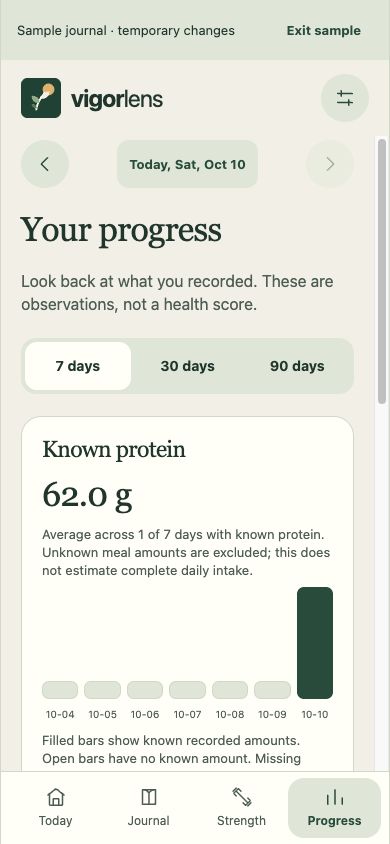
Review observations over 7 days, 30 days, or 90 days, including known protein, fluids, movement, comfort, and recording coverage.
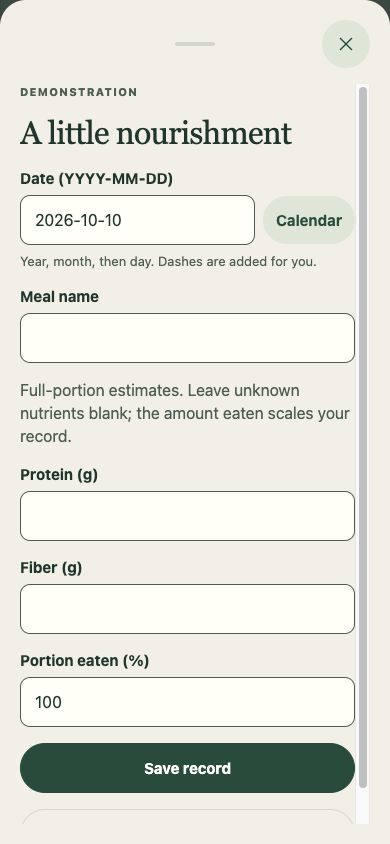
Enter meals, portion eaten, protein, fiber, fluids, movement sets/reps/load, comfort observations, and optional measurements.
Choose or take a meal photo, provide optional context, send it only after sign-in and per-photo consent, then review foods and portions before using an estimate.
Record the percentage eaten, leave unknown amounts blank, use metric or US units, and reopen or edit saved entries.
Prepare a visit summary by selecting a date range and observations, review it, save it, and export selected information.
Create or restore a passphrase-encrypted backup file. Keep the file and its passphrase somewhere private; support cannot recover a lost passphrase.
With an account, inspect, upload, and download an encrypted recovery record using a sync passphrase; uploads require current Plus access when store billing is active.
Review saved-journal access and store plans. Eligible store enrollment offers a seven-day trial that renews unless canceled; purchase and restore do not require a VigorLens login.
Screenshots show development app screens with sample data. Mobile-layout browser captures illustrate the screens; native permissions, recording, and store checkout may look different.
Add a meal and keep uncertain amounts visible as unknown.
Keep hydration and meal comfort observations together for the same day.
Record a routine you already follow without prescribing a program.
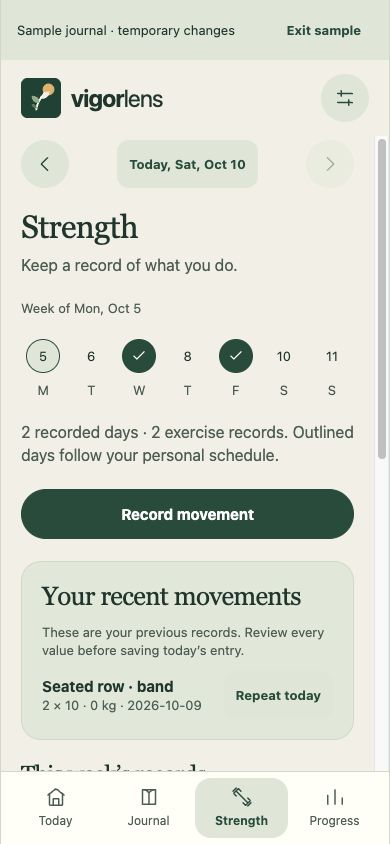
Photo assistance creates a draft that you must review; it never saves automatically.
Select observations for review and export only after checking the result.
Use an encrypted file backup when changing devices and keep its passphrase safe.
Cloud recovery is account-protected and keeps the journal encrypted before upload.
Use the in-app controls to understand storage and remove local or cloud records.
Saved records remain available for reading, review, export, recovery, and deletion without a subscription.
New manual meals, fluids, movement, comfort, and measurement logging requires eligible local store access, such as an active seven-day store-managed trial or Plus subscription.
The trial is store-managed for eligible customers, lasts seven days, and renews into the selected plan unless canceled; Apple or Google determines eligibility.
No new account trial is created by signing in. Store purchase and restore are available without a VigorLens product login.
Photo AI and protected cloud recovery require a signed-in account; photo AI also requires per-photo transfer consent and current Plus access when store billing is active.
If photo assistance is paused, unavailable, or not configured, review foods manually and record the meal without sending a photo.
VigorLens is coming soon. Store purchases and provider-dependent features may be unavailable in a test build.
The saved journal is designed to stay on the device and works without an account.
Cloud recovery is optional. When used, the journal is encrypted on the device before upload and requires the same sync passphrase to recover it.
A selected meal photo and optional note leave the device only after sign-in and explicit per-photo consent; the resulting draft must be reviewed before recording.
Photo assistance may be paused or unavailable, and the app should say so rather than implying a successful analysis.
Local encrypted backup and cloud recovery are different controls; losing the device key or a backup passphrase can make records unrecoverable.
Privacy policy is available from the header settings icon → Privacy & data. Medication dosing and diagnosis are outside the app.
Erase this device journal removes the local journal after confirmation. Completing Delete cloud account also clears this device’s journal, sign-in, and recovery keys. Export anything you want to keep first; complete any prompted device cleanup if interrupted. Cancel Apple or Google billing separately. Previously exported files and other devices require their own cleanup.
Please keep private records, passwords, and recovery phrases out of support messages. Use the privacy, deletion, and support links below for this product.