Today
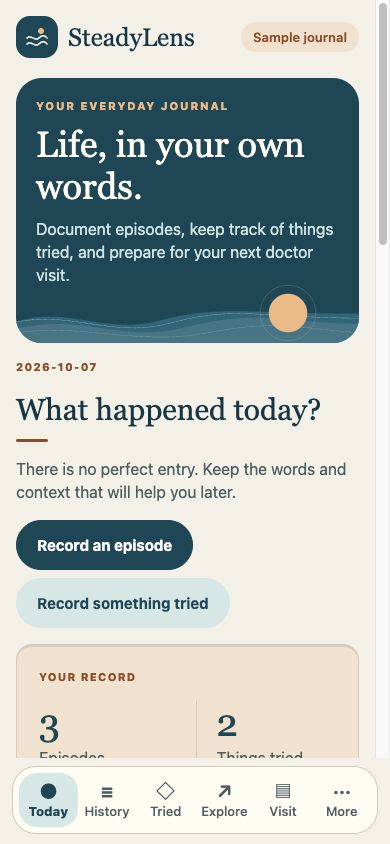
See the current day, record an episode, record something tried, review the journal counts, open View History, and edit one of the three recent episodes.
App guide and tutorials
SteadyLens helps adults across autoimmune conditions keep a clear, private record of episodes, experiences, things tried, and questions for a doctor visit. It records what you report in your own words; it does not diagnose, predict flares, recommend treatment or doses, establish causes, or monitor symptoms.
Open Today and choose Start local journal in the native app, or Start fictional sample journal in the browser preview.
To record an episode, choose Record an episode. To record an approach, choose Record something tried.
Use the bottom navigation labels Today, History, Tried, Explore, Visit, and More. Their full names are Today, History, Things tried, Explore, Visit prep, and Settings.
Optional fields can stay unknown. SteadyLens records observations for discussion; it is not an emergency-monitoring service.
See the current day, record an episode, record something tried, review the journal counts, open View History, and edit one of the three recent episodes.
Capture an Episode date, Symptom or experience, optional Condition context, Approximate time and duration, Effect on my day, optional Fatigue and Pain ratings from 0 to 4, What I tried, What I noticed afterward, and optional Other context.
Review dated episodes grouped by day. Filter with Filter by date (optional), use Show all dates to clear a valid filter, and use Edit episode or Delete episode on a record. A missing day remains unknown rather than symptom-free.
Keep approaches with their dates, aim, method, observations, and context. Record something tried or use Edit approach and Delete approach. Choose Personal, Care team, or Research study under Approach context; the record does not recommend an approach or establish an effect.
Open checked official sources: Open MedlinePlus for autoimmune information, Open ClinicalTrials.gov for the external registry, or Learn about clinical studies. These links send no journal details or automatic condition query; the external sites have their own policies.
Write in My questions, optionally use Add a study question, and choose Save questions. A saved question change means the Visit brief must be reviewed again.
Choose Brief start date and Brief end date, then select Include episodes, Include things tried, and Include questions. Read the generated Visit brief before review or export.
Choose I have reviewed this brief, then Share reviewed brief on native or Download reviewed sample brief in the browser. The brief is a user-recorded discussion aid, not a clinical assessment; editing records, questions, or selection clears its review.
Settings shows Storage and privacy, SteadyLens Plus availability and plan terms, the browser-only Fictional sample journal controls, and Erase this device’s journal. Use Privacy policy or Retry temporary export cleanup as needed.
Choose Erase journal on this device, then Confirm erase journal. This removes the local journal and native encryption key; previously exported or shared copies remain outside SteadyLens.
Screenshots show development app screens with sample data. Mobile-layout browser captures illustrate the screens; native permissions, recording, and store checkout may look different.
Save a dated account in your own words.
Correct or add context to an episode already saved on the device.
Record an approach you already chose or discussed without turning it into a recommendation.
Use the dated history and the device deletion control.
Open official resources and save questions without journal transfer or study matching.
Select the records and questions you want to discuss.
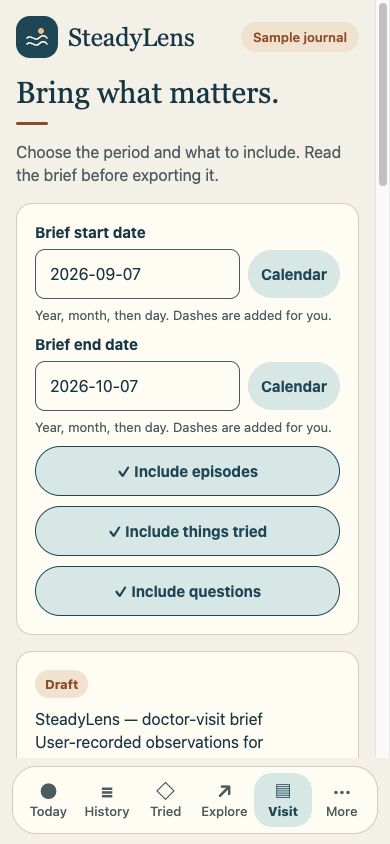
Export only after reading and explicitly reviewing the brief.
Delete the journal from the current device after reviewing the consequences.
The planned offer is an eligible seven-day store-managed trial, then $3.99/month or $39.99/year in the US. The store confirms eligibility and terms. The subscription renews unless canceled through Apple or Google.
SteadyLens Plus is intended to enable new and edited episode and approach records. Onboarding, saved records, questions, visit selection, reviewed export, and deletion remain available without Plus.
Purchases and restores are not available yet. A disabled test build or browser preview does not start a trial or charge you. When available, a trial begins only after store checkout confirmation; downloading or setting up a journal alone does not start it.
No SteadyLens account, Focalward backend, account trial service, or payment recovery of journal records exists. Restore of payment access does not restore lost records or an encryption key.
The native journal stays on the device in SQLCipher storage with a device-only key and operating-system backup exclusions. There is no journal upload, cloud sync, cloud recovery, analytics, or AI processing.
Losing the device or its device-only key can mean losing the records. A missing key does not replace the journal with an empty one.
The browser preview is fictional-only and unencrypted localStorage. Samples may survive reload, and loading samples requires confirmation. Browser samples are separate from native records; do not enter real health data there.
Official Explore links send no journal details, account details, journal search, or automatic condition query. External sites may collect information under their own policies.
Erasure removes the local journal and native key, then attempts temporary-export cleanup; retry cleanup in Settings if needed. Copies already exported or shared remain outside the app and cannot be erased by SteadyLens.
Please keep private records, passwords, and recovery phrases out of support messages. Use the privacy, deletion, and support links below for this product.